


Transform layers
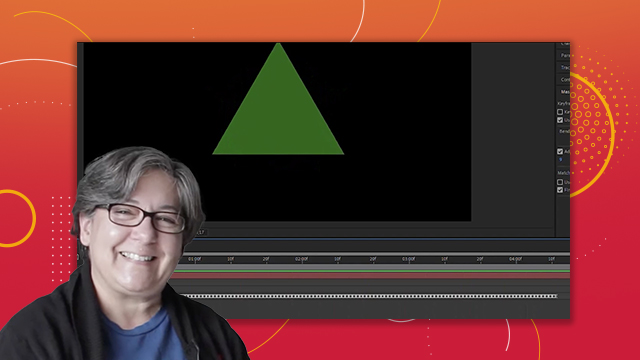
Modify digital media within a project and transform visual elements in the composition by scaling, rotating, flipping, and moving.
This summary is AI generated
Learning Outcomes:
- Transform visual elements in After Effects
- Utilize shortcuts for efficient editing
- Understand anchor point and position relationships
Level: Intermediate
Skills you'll gain:
After Effects, Transform, Animation, Shortcuts
Key Insights
- Transform includes anchor point, position, scale, rotation, and opacity.
- Use shortcuts: A for anchor point, P for position, S for scale, R for rotation, T for opacity.
- Anchor point determines the pivot for transformations.
- Position relates to the anchor point's location in the composition.
- Reset transformations easily through the layer menu.
- Fit layers to composition dimensions using 'fit to comp' options.
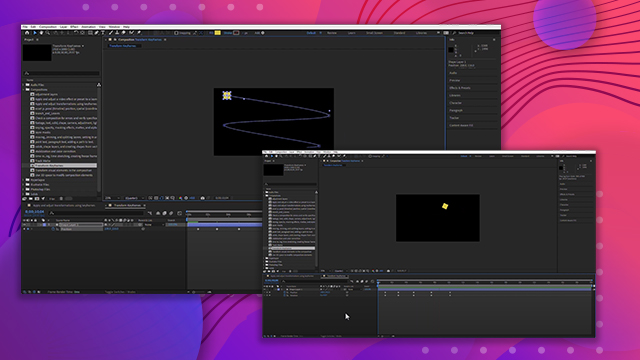
- Auto Orient allows layers to follow a path dynamically.
- Flipping layers can be done through layer transform options.
- Continuously rasterize vector layers to maintain quality during scaling.










 AdChoice