[00:00:00] Hello, my name is Valentina V and
[00:00:00] welcome to the Adobe Premiere Pro
[00:00:00] workshop. For the next three or so
[00:00:00] hours, I'm going to teach you everything
[00:00:00] you need to know about Premiere Pro from
[00:00:00] the very beginning. This is also going
[00:00:00] to be useful for those of you coming
[00:00:00] from a different editing software
[00:00:00] wanting to learn more about Premiere
[00:00:00] Pro. If you're someone who has watched
[00:00:00] one of my previous workshops and you
[00:00:00] want to know what's new in the software,
[00:00:00] I'm very excited to share that this is
[00:00:00] the most updated version. You can jump
[00:00:00] directly to those sections because I've
[00:00:00] outlined them via timestamps here. I've
[00:00:00] done a couple home improvement projects
[00:00:00] in my home and I've taken footage of it
[00:00:00] so that we could create two videos. The
[00:00:00] first being more of a vlog style video
[00:00:00] with a bunch of clips just put together
[00:00:00] to music and the second one is a little
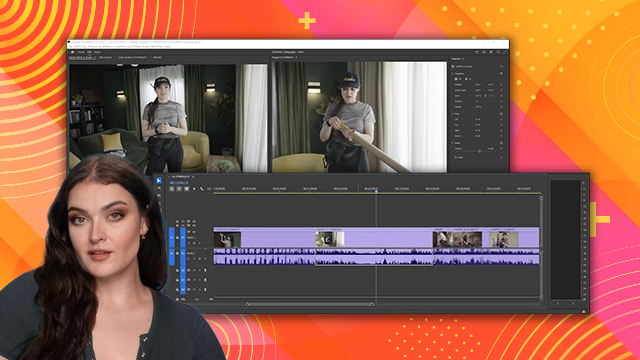
[00:00:00] bit more complicated. We have an
[00:00:00] interview style video with two different
[00:00:00] angles, B-roll on top of everything,
[00:00:00] slow motion, color correction, graphics,
[00:00:00] and sound effects. I'm providing all of
[00:00:00] the assets for this project so you can
[00:00:00] follow along with me using the exact
[00:00:00] clips that I am using. I've also made a
[00:00:00] PDF with all the information you need.
[00:00:00] It's written in plain language. It's
[00:00:00] written by me and you can always refer
[00:00:00] back to it if you need a little bit of
[00:00:00] help or to remember a certain shortcut
[00:00:00] or phrase. I know that learning a new
[00:00:00] software can be scary sometimes, but I
[00:00:00] hope that my approach helps you because
[00:00:00] I don't just explain, I show. Let's get
[00:00:00] started. A good foundation starts with
[00:00:00] file organization. Here on my external
[00:00:00] drive, you can see that every video I
[00:00:00] make starts with a main folder. And I
[00:00:00] name them by having the year, month,
[00:00:00] day, underscore, and what it is. And
[00:00:00] each one when you click into it has
[00:00:00] subfolders. You can see here footage,
[00:00:00] audio, graphics, music, photos,
[00:00:00] documents, Premiere, AE, After Effects,
[00:00:00] and exports. The way I make sure the
[00:00:00] subfolders are always the same is I have
[00:00:00] this little demo folder on all of my
[00:00:00] hard drives. And inside there, I have
[00:00:00] that exact file organization. So every
[00:00:00] time I make a video and I need a place
[00:00:00] to put the footage, I'll take this
[00:00:00] folder. I will copy paste it
[00:00:00] and I will rename it. So 2025 0601
[00:00:00] Premier Demo.
[00:00:00] There we go. And now double click. And
[00:00:00] all the footage is in there. For this
[00:00:00] project, you're not getting all the
[00:00:00] folders. You're getting the first two,
[00:00:00] footage and audio. Why? because all the
[00:00:00] other ones are empty.
[00:00:00] The footage folder, we have the video
[00:00:00] name, the camera name, so a cam, bcam,
[00:00:00] etc. And then the number of the clip.
[00:00:00] You can see here later we get into bcam
[00:00:00] and those numbers here as well. In the
[00:00:00] audio folder, we just have two audio
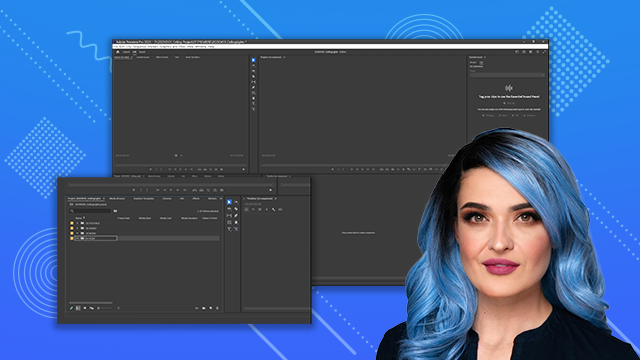
[00:00:00] files. Now let's open Premiere Pro. When
[00:00:00] you open Premiere, this is what you'll
[00:00:00] see on the welcome screen. Welcome to
[00:00:00] Premiere Pro. Your name, a picture of
[00:00:00] me, it might actually change by the time
[00:00:00] you're watching this, and then all of
[00:00:00] your recent projects. If you're brand
[00:00:00] new to Premiere, you won't have any
[00:00:00] recent projects here. You can ignore
[00:00:00] pretty much everything except for new
[00:00:00] project. That is the button that we want
[00:00:00] to hit to create a new project. This
[00:00:00] window is where you name your project
[00:00:00] and select where it lives on your hard
[00:00:00] drive. That way, every time you come
[00:00:00] back to it and you want to open the
[00:00:00] project, you know exactly where to find
[00:00:00] it. For project name, I like putting the
[00:00:00] date and being super organized. 2025
[00:00:00] 0430
[00:00:00] ceiling lights. And then here in
[00:00:00] location, that's where you will select
[00:00:00] where it lives on your computer. So,
[00:00:00] choose location. If you used my same
[00:00:00] file organization, you should see that
[00:00:00] there's actually a Premiere folder. That
[00:00:00] is what you're going to select because
[00:00:00] not only does your Premiere Pro document
[00:00:00] live in there, but also any autosaves
[00:00:00] that Premiere creates are going to live
[00:00:00] in there. That folder. Save. There it
[00:00:00] is. And then for template, we're just
[00:00:00] going to do none. Now, if we just click
[00:00:00] create, it's going to take us to
[00:00:00] Premiere Pro's import mode. And of
[00:00:00] course, I'm going to show you what that
[00:00:00] is. I'm going to click create. Okay.
[00:00:00] Now, I'm in import mode. Here along the
[00:00:00] left, I'll find where my footage lives.
[00:00:00] So, it lives on this hard drive in
[00:00:00] ceiling project footage, and it all
[00:00:00] should populate here. What's great about
[00:00:00] import mode is it can get you started on
[00:00:00] creating a project before you're even
[00:00:00] into the editing software. So you can
[00:00:00] even preview what the clips are by
[00:00:00] hovering your mouse over them left to
[00:00:00] right. This is called hover scrubbing.
[00:00:00] You can select them by clicking on them.
[00:00:00] You can see here the little check mark.
[00:00:00] You can select multiple ones by holding
[00:00:00] down shift
[00:00:00] and clicking the last one that you want
[00:00:00] to select. You can see as I clicked on
[00:00:00] them, they added themselves all in a row
[00:00:00] over here. So, it's like the software is
[00:00:00] already building the project before you
[00:00:00] even get into it. Here on the right, you
[00:00:00] can also do a few other things like you
[00:00:00] can organize media. So, you can add it
[00:00:00] to a folder. You can create a new
[00:00:00] sequence. We haven't even talked about
[00:00:00] what a sequence is yet. You can also
[00:00:00] analyze the clips so that later you can
[00:00:00] search within them. And when you click
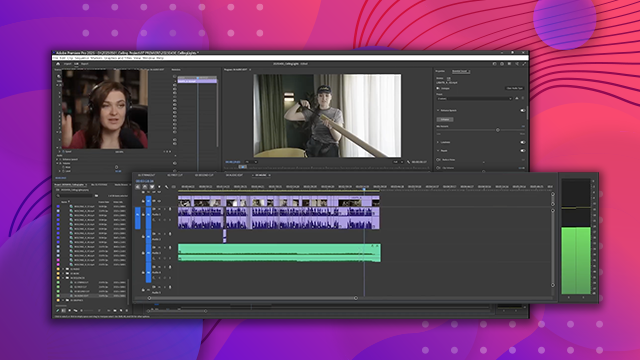
[00:00:00] import, you can see your clips are here,
[00:00:00] your timeline's here. But what are even
[00:00:00] these things? Let's do everything from
[00:00:00] scratch and skip import mode. We're
[00:00:00] back. We click new project. Here we're
[00:00:00] going to write 2025 0430
[00:00:00] ceiling lights. No templates. And we're
[00:00:00] going to click skip import