Home > Paragraph

Luisa Winters

Instructor and consultant for Adobe products

linkedin-icon

Paragraph

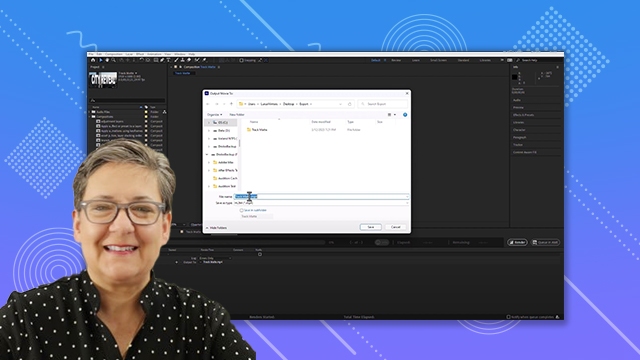
Adjust paragraph settings such as alignment, indentation, paragraph spacing, and more.
This summary is AI generated

Learning Outcomes:

  • Adjust paragraph settings in After Effects.
  • Change text alignment and indentation.
  • Manage paragraph spacing effectively.

Level: Intermediate

Skills you'll gain:

After Effects, Text, Paragraph, Alignment

Key Insights

  • Use the paragraph panel for alignment options.
  • Indent the first line or entire paragraph as needed.
  • Adjust text direction for different languages.
  • Reset paragraph settings by typing zero values.
  • Hover over options for tooltips and guidance.
  • Apply spacing before and after paragraphs.
  • Select entire layers or individual characters for adjustments.
  • Understand the similarities between After Effects and word processors.

Learning outcomes

  • Adjust paragraph settings in After Effects.
  • Change text alignment and indentation.
  • Manage paragraph spacing effectively.

Key insights

  • Use the paragraph panel for alignment options.
  • Indent the first line or entire paragraph as needed.
  • Adjust text direction for different languages.
  • Reset paragraph settings by typing zero values.
  • Hover over options for tooltips and guidance.
  • Apply spacing before and after paragraphs.
  • Select entire layers or individual characters for adjustments.
  • Understand the similarities between After Effects and word processors.

Skills

After Effects, Text, Paragraph, Alignment

Transcript

[00:00:00] foreign

[00:00:00] [Music]

[00:00:00] certification preparation series of

[00:00:00] videos I'm Louisa Winters in this video

[00:00:00] I want to cover objective 4.2 C which is

[00:00:00] to adjust paragraph settings we're going

[00:00:00] to talk about alignment indentation

[00:00:00] paragraph spacing and left to right text

[00:00:00] Direction and here we go let's go to

[00:00:00] after effects

[00:00:00] in After Effects let's create a new

[00:00:00] composition

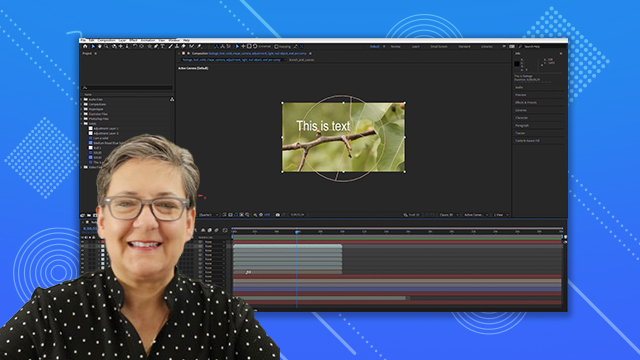
[00:00:00] and let's create some text I'm going to

[00:00:00] create Point text this time this is text

[00:00:00] and I'm going to change the font to

[00:00:00] everdana

[00:00:00] because I am a verdana girl and there

[00:00:00] you go I'm going to reset

[00:00:00] the vertical scale back to 100 the

[00:00:00] horizontal scale back to 100

[00:00:00] and the kerning and the tracking I'm

[00:00:00] going to just change that to zero and

[00:00:00] yep that's all good and now

[00:00:00] no these are a little too tight so I'm

[00:00:00] going to change this to

[00:00:00] a little bit like yay okay it's good

[00:00:00] that's good all right so let's talk

[00:00:00] about paragraphs right so there's a

[00:00:00] paragraph panel and there's not too too

[00:00:00] many options in here but uh you know

[00:00:00] let's talk about this and in fact I'm

[00:00:00] gonna have another line another line and

[00:00:00] yet a third line right

[00:00:00] now I can select this whole thing by

[00:00:00] just selecting the layer and I can go oh

[00:00:00] Center align okay right a line and let

[00:00:00] me just move this to yay

[00:00:00] so Center

[00:00:00] there you go and right and there you go

[00:00:00] right so those are pretty

[00:00:00] self-explanatory right now I can select

[00:00:00] all of the characters

[00:00:00] and I can do the same thing no

[00:00:00] difference right

[00:00:00] and I can move it like yay now I can

[00:00:00] also change it

[00:00:00] in different ways for example I can have

[00:00:00] this center line or even write a line

[00:00:00] and then I can go uh well any alignment

[00:00:00] and then I can go like yay and I can

[00:00:00] move the text more to the right I can

[00:00:00] give

[00:00:00] more space like that I can give more

[00:00:00] space like Yay but look what happens if

[00:00:00] I just have this selected

[00:00:00] see it

[00:00:00] same thing so selecting all of the

[00:00:00] characters or selecting the whole layer

[00:00:00] kind of sort of the same thing if I put

[00:00:00] the mouse cursor here and then I go like

[00:00:00] Yay I'm indenting only one line

[00:00:00] same with this see how this is Now not

[00:00:00] working and this is also indenting that

[00:00:00] first line so this one here indents the

[00:00:00] entire first margin this one here

[00:00:00] indents the first line so depending on

[00:00:00] where your mouse cursor is or or your

[00:00:00] insert your insertion point right so

[00:00:00] this this line you're going to be

[00:00:00] affecting one or more things right so

[00:00:00] here we go I can have also text going

[00:00:00] left to right or right to left so you

[00:00:00] can go put Luisa when am I going to have

[00:00:00] right to left well you know English is

[00:00:00] not the only language supported in here

[00:00:00] there are so many languages that go from

[00:00:00] right to left you know Hebrew Arabic uh

[00:00:00] there are languages that go up down you

[00:00:00] know let's just make sure that we are

[00:00:00] using the proper uh settings here of

[00:00:00] course this course is in English so I'm

[00:00:00] only going to use left to right all

[00:00:00] right now if I wanted to reset any of

[00:00:00] these I would just type 0 0

[00:00:00] and 0

[00:00:00] and 0 and 0 and of course zero I didn't

[00:00:00] type zero before and let me go back to

[00:00:00] the paragraph and all of that right so

[00:00:00] I can indent the first line I can indent

[00:00:00] all of the lines and I can also change

[00:00:00] the alignment of the paragraphs so all

[00:00:00] of these things are pretty

[00:00:00] self-explanatory because I mean let's

[00:00:00] face it after effects is not the only

[00:00:00] program that we have to type text I mean

[00:00:00] this is stuff that even Microsoft Word

[00:00:00] does so you know none of this is super

[00:00:00] difficult I just want you to make sure

[00:00:00] that if you're presented on the test

[00:00:00] with something like oh you know change

[00:00:00] the indentation of the first line by

[00:00:00] whatever pixels that you know to go to

[00:00:00] the paragraph panel and quite frankly

[00:00:00] you know make sure that you click and

[00:00:00] drag on the right thing and

[00:00:00] listen if you don't know which one is

[00:00:00] which that's okay just hover on top of

[00:00:00] it see add space before paragraph indent

[00:00:00] the first line and then the left margin

[00:00:00] indent the right margin add space after

[00:00:00] paragraph So we only have one paragraph

[00:00:00] here so you know if we were to have more

[00:00:00] than one paragraph so let me have a text

[00:00:00] box

[00:00:00] and I'm going to change this to zero

[00:00:00] and

[00:00:00] I will type more than one paragraph

[00:00:00] and oops

[00:00:00] and then I will type even more right

[00:00:00] and I'm going to select all of these and

[00:00:00] I'm going to go a little bit

[00:00:00] shorter all right

[00:00:00] I really need to learn how to type

[00:00:00] better than that and here we go so I can

[00:00:00] now go to my paragraph and I can add you

[00:00:00] know spaces after the paragraph see it

[00:00:00] in between the two paragraphs I can

[00:00:00] indent

[00:00:00] the first lines

[00:00:00] I can add space before the paragraph I

[00:00:00] can indent the first line I can indent

[00:00:00] the right margin I can also have text

[00:00:00] going from right to left

[00:00:00] all right so none of these things are

[00:00:00] very difficult in fact this is a very

[00:00:00] short movie because I mean hopefully

[00:00:00] most of us know how to do this so This

[00:00:00] brings us to the end of this video thank

[00:00:00] you for watching and I'll see you on the

[00:00:00] next video

[00:00:00] [Music]

[00:00:00] thank you

Explore Other Tutorials