Create text
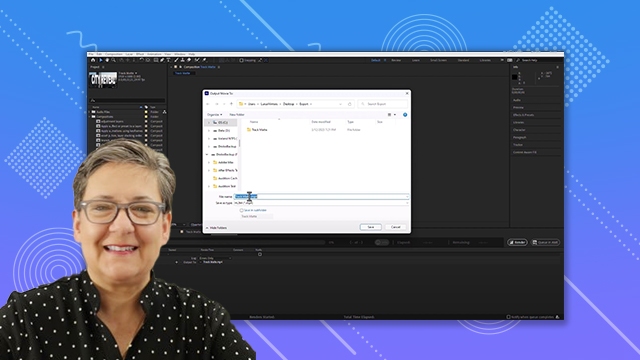
Create, manipulate, and animate text in a composition.
This summary is AI generated
Learning Outcomes:
- Create Point and Paragraph text in After Effects
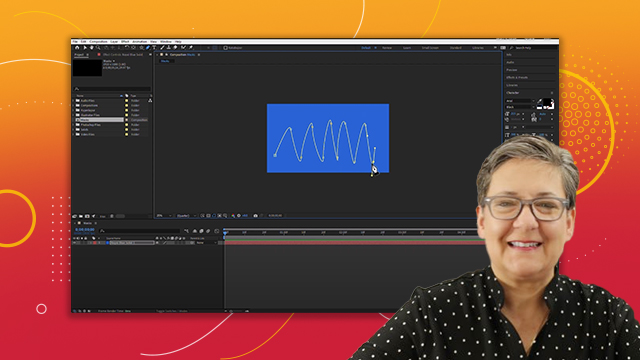
- Add text to a path using masks
- Understand text alignment and margins
Level: Intermediate
Skills you'll gain:
After Effects, Text, Animation, Design
Key Insights
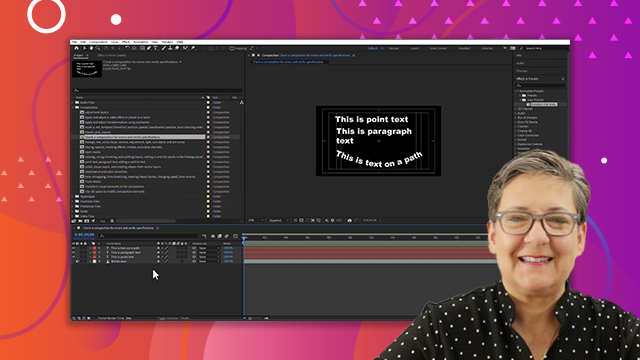
- Point text is created by clicking and typing.
- Paragraph text requires a text box for input.
- Text behavior differs between Point and Paragraph text.
- Text on a path requires the text layer first.
- Margins in After Effects are referred to as left and right.
- Force alignment affects how text aligns on a path.
- Keyframing text properties allows for dynamic animations.
- Understanding text alignment is crucial for effective design.
Did the AI summary help? Let us know.
Learning outcomes
- Create Point and Paragraph text in After Effects
- Add text to a path using masks
- Understand text alignment and margins
Key insights
- Point text is created by clicking and typing.
- Paragraph text requires a text box for input.
- Text behavior differs between Point and Paragraph text.
- Text on a path requires the text layer first.
- Margins in After Effects are referred to as left and right.
- Force alignment affects how text aligns on a path.
- Keyframing text properties allows for dynamic animations.
- Understanding text alignment is crucial for effective design.
Skills
After Effects, Text, Animation, Design
Transcript
[00:00:00] foreign
[00:00:00] [Music]
[00:00:00] certification preparation series of
[00:00:00] videos I'm Louisa Winters in this video
[00:00:00] I want to cover objective
[00:00:00] 4.2 a which is to create text in a
[00:00:00] composition so we're going to talk about
[00:00:00] Point text and paragraph text we're
[00:00:00] going to talk about adding text to a
[00:00:00] path all right so here we go let's get
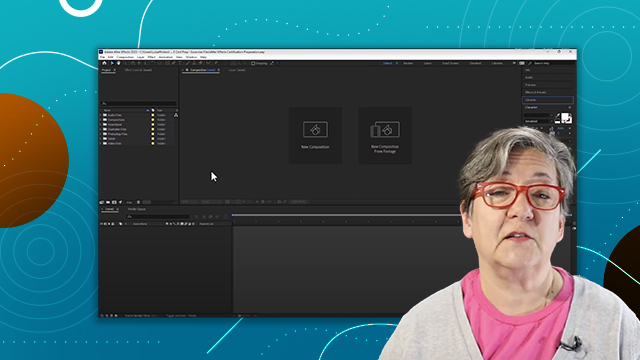
[00:00:00] us started here in After Effects go
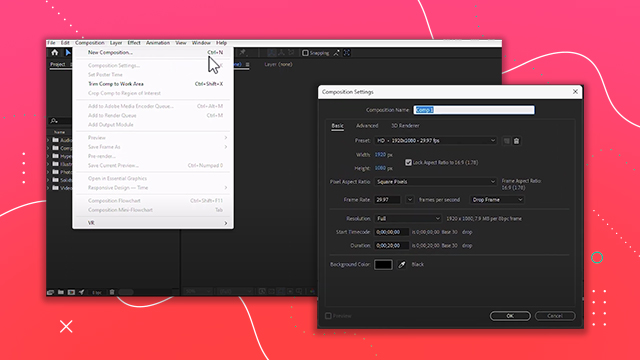
[00:00:00] ahead and create a new composition so
[00:00:00] controller command n and there you go
[00:00:00] and now let's go ahead and type some
[00:00:00] text to do that grab the type tool which
[00:00:00] is this guy if you click and hold on
[00:00:00] that tool you're going to see two tools
[00:00:00] the horizontal type tool and the
[00:00:00] vertical type tool I'm not going to go
[00:00:00] over the vertical well actually okay so
[00:00:00] you can type
[00:00:00] vertical whatever right yeah I know
[00:00:00] right so I'm going to undo that
[00:00:00] and instead I want to type horizontal
[00:00:00] now
[00:00:00] in Adobe world and and other apps right
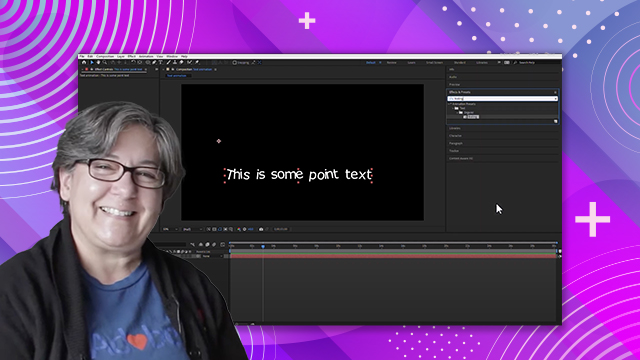
[00:00:00] you can have two types of text you can
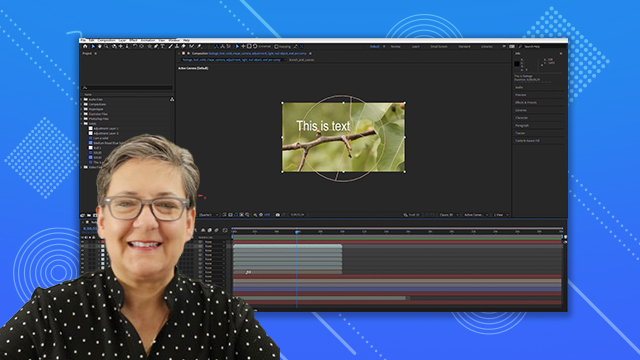
[00:00:00] have Point text which means you simply
[00:00:00] click
[00:00:00] and type
[00:00:00] right click and type that's Point text
[00:00:00] if you then change the scale of this
[00:00:00] say it you are changing the scale of the
[00:00:00] type right all right now you can also
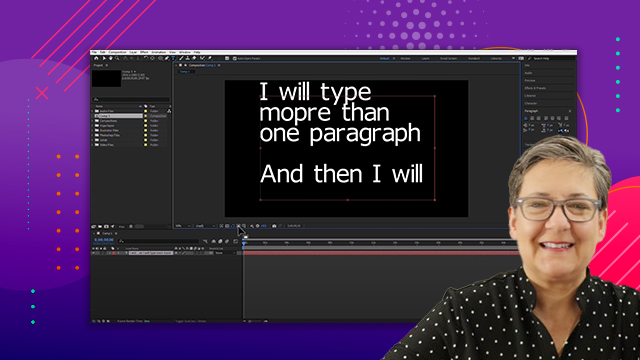
[00:00:00] have paragraph text which means you
[00:00:00] click and drag a text box and you type
[00:00:00] Inside the Box
[00:00:00] and you can resize the Box
[00:00:00] the text behavior is going to be
[00:00:00] slightly different as you can clearly
[00:00:00] see depending on whether you have
[00:00:00] paragraph text or you have Point text so
[00:00:00] keep those things in mind and usually
[00:00:00] not always but usually if I have a
[00:00:00] designer in my class that is doing text
[00:00:00] the designer will always always do a
[00:00:00] text box
[00:00:00] if I have a video editor in the class
[00:00:00] that video editor is just going to click
[00:00:00] and type
[00:00:00] so you know the difference is really the
[00:00:00] behavior of the text uh as you're typing
[00:00:00] so which one is better I sure don't know
[00:00:00] sometimes I use one and sometimes I use
[00:00:00] the other one so it makes no difference
[00:00:00] to me but if you're a designer I'm sure
[00:00:00] you're thinking to yourself right now oh
[00:00:00] that is preposterous it needs to be a
[00:00:00] text box you know what
[00:00:00] go for it make it a text box alright so
[00:00:00] let's continue so you can have Point
[00:00:00] text you can have paragraph text you can
[00:00:00] also have text on a path
[00:00:00] but this is the thing if you are used to
[00:00:00] photoshop or illustrator for that matter
[00:00:00] you already know that to have text on a
[00:00:00] path you have to have the path first
[00:00:00] in After Effects it doesn't work like
[00:00:00] that because if you start drawing the
[00:00:00] path
[00:00:00] you know with the pen tool with whatever
[00:00:00] of these you are creating a shape layer
[00:00:00] so you need to have the layer first
[00:00:00] all right you need to have the text
[00:00:00] first then you can have the path so I'm
[00:00:00] just gonna type I'm going to use Point
[00:00:00] text don't hate me I'm going to use
[00:00:00] Point text I'm going to I'm going to use
[00:00:00] text on a path right I'm going to double
[00:00:00] click this layer and I'm going to make
[00:00:00] it a little bit smaller so that we can
[00:00:00] see it we're going to talk about those
[00:00:00] settings a little bit later uh actually
[00:00:00] in the next movie and now that I have
[00:00:00] the layer
[00:00:00] I can have my path and I know a path is
[00:00:00] a mask a mask is a path but not really
[00:00:00] because a path
[00:00:00] doesn't quite create transparency
[00:00:00] but I'm asked thus so let's create a
[00:00:00] mask which is a path which is a mask
[00:00:00] which is whatever right so I'm just
[00:00:00] going to do this and I'm gonna do a
[00:00:00] perfect circle and there you have it
[00:00:00] right
[00:00:00] I am asking it
[00:00:00] yeah but it's okay because what we want
[00:00:00] is text on a path so here we go expand
[00:00:00] text in the timeline expand the path
[00:00:00] options and do you see where it says
[00:00:00] path and then none
[00:00:00] click on that drop down and choose the
[00:00:00] one and only mask that you have boom
[00:00:00] there you go text on a path
[00:00:00] and it doesn't have to be a mask like
[00:00:00] that by the way look at the transparency
[00:00:00] of the Mask immediately turned to none
[00:00:00] all right so that's done automatically
[00:00:00] and it doesn't have to be a circle it
[00:00:00] could just be anything that you create
[00:00:00] could be a star could be anything at all
[00:00:00] so we already have talked about that I'm
[00:00:00] not going to go over that again but it
[00:00:00] could be anything right so there are
[00:00:00] these things that come
[00:00:00] uh with now that we have text on a path
[00:00:00] reverse path I can turn that on or off
[00:00:00] I'm thinking that's pretty
[00:00:00] self-explanatory inside of the path
[00:00:00] outside inside outside right
[00:00:00] I'm Gonna Leave It Off perpendicular
[00:00:00] it's each and every character going to
[00:00:00] be perpendicular to the path which is
[00:00:00] what it is now
[00:00:00] or not
[00:00:00] oh that's crazy so I'm gonna turn it on
[00:00:00] Force alignment boom
[00:00:00] yeah I'm gonna shut that off too
[00:00:00] first margin
[00:00:00] oh
[00:00:00] I know what I am animating
[00:00:00] I know right pretty cool but look what
[00:00:00] happens to the last margin is doing
[00:00:00] nothing nothing
[00:00:00] know this the reason why these are doing
[00:00:00] nothing is because there is no such
[00:00:00] thing as a first margin that doesn't
[00:00:00] exist I mean a first margin first as
[00:00:00] opposed to second third fourth yeah they
[00:00:00] don't exist there's not a first one or a
[00:00:00] last one there's only a right one and I
[00:00:00] left one
[00:00:00] let me put it to you this way I'm going
[00:00:00] to do something a little bit different
[00:00:00] I'll do uh this is my text right and now
[00:00:00] I'm going to draw a mask like Yay right
[00:00:00] so same thing right uh text path options
[00:00:00] choose mask one right
[00:00:00] look at the first margin which is really
[00:00:00] the left margin right I can animate that
[00:00:00] and then my text is just going to go
[00:00:00] [Music]
[00:00:00] so I'm gonna undo that same thing the
[00:00:00] last margin is not working the reason
[00:00:00] for that has to do with a paragraph
[00:00:00] setting if we are left aligned
[00:00:00] then only the left margin Works which
[00:00:00] After Effects calls first margin so
[00:00:00] there is no first margin there's only a
[00:00:00] left margin so if I have this right
[00:00:00] aligned then the last margin works and
[00:00:00] the first one doesn't because there
[00:00:00] again there is no such thing as first
[00:00:00] and last there's only left and right
[00:00:00] I'm just saying right if this is Center
[00:00:00] aligned they both work boom boom boom
[00:00:00] boom boom boom
[00:00:00] if Force alignment is turned on they
[00:00:00] both work
[00:00:00] and I can just squish them all together
[00:00:00] I can now keyframe this here and then
[00:00:00] separate them like yay and like yay and
[00:00:00] now I can have animation
[00:00:00] like that
[00:00:00] right so
[00:00:00] one of the first things that I want you
[00:00:00] to remember in After Effects is that
[00:00:00] After Effects likes to use words like
[00:00:00] first and last
[00:00:00] and beginning and end that sort of thing
[00:00:00] don't think of it as first and last or
[00:00:00] beginning and end think of it as left
[00:00:00] and right or
[00:00:00] [Music]
[00:00:00] anything else that would help you
[00:00:00] remember how to keyframe these things
[00:00:00] all right so we have talked about Point
[00:00:00] text paragraph text and of course text
[00:00:00] on a path and this brings me to the end
[00:00:00] of this video so thank you for watching
[00:00:00] and I'll see you on the next video
[00:00:00] [Music]
[00:00:00] thank you