


Place assets
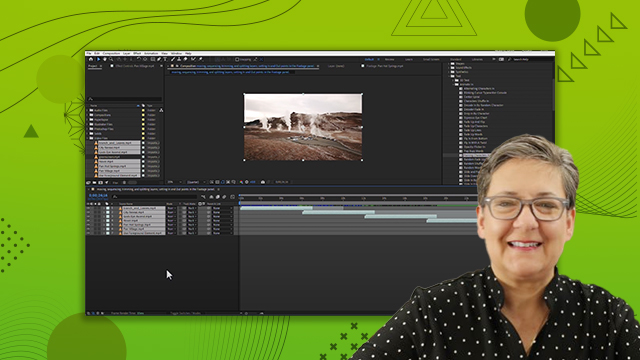
Learn how to place assets into a composition. You'll learn concepts such as temporal (timeline) position, spatial (coordinates) position, and more.
This summary is AI generated
Learning Outcomes:
- Place assets accurately in the timeline
- Trim layers effectively in After Effects
- Utilize guides for precise positioning
Level: Intermediate
Skills you'll gain:
After Effects, Asset Placement, Layer Management, Timeline Editing
Key Insights
- Use the playhead to position layers in time.
- Press left square bracket to trim layer start.
- Press right square bracket to trim layer end.
- Hold shift key for snapping layers to playhead.
- Utilize keyboard shortcuts for efficiency.
- Drag guides from rulers for better alignment.
- Ensure snapping is enabled for accurate placement.
- Layers default to full composition length.
- Double-click layers to adjust timing in layer panel.




 AdChoice