[00:00:00] [Music]
[00:00:11] thank you
[00:00:13] [Music]
[00:00:15] hello and welcome to this after effects
[00:00:18] certification preparation series of
[00:00:20] videos I'm Louisa Winters in this video
[00:00:23] I want to discuss objective
[00:00:26] 2.3 a which is controlling and working
[00:00:29] with the timeline and media so we're
[00:00:32] going to talk about panning zooming
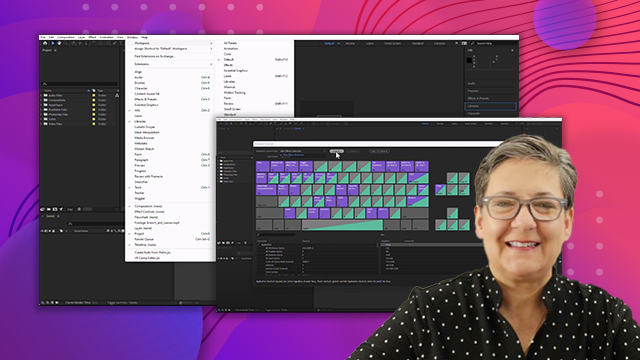
[00:00:34] playing passing some keyboard shortcuts
[00:00:36] time codes and of course the CTI or
[00:00:40] current time indicator which really is
[00:00:42] the playhead and other things so without
[00:00:46] any further Ado let's get to it so in
[00:00:50] the after effects project you hopefully
[00:00:52] downloaded there are some compositions
[00:00:55] here open any of them it doesn't really
[00:00:58] matter I'm going to open the one that
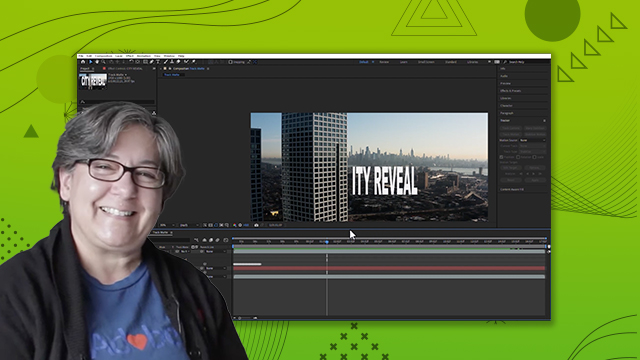
[00:01:01] says track matte only because again it
[00:01:04] doesn't really matter which one we open
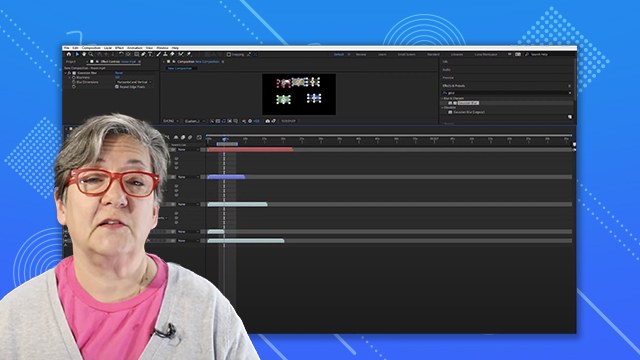
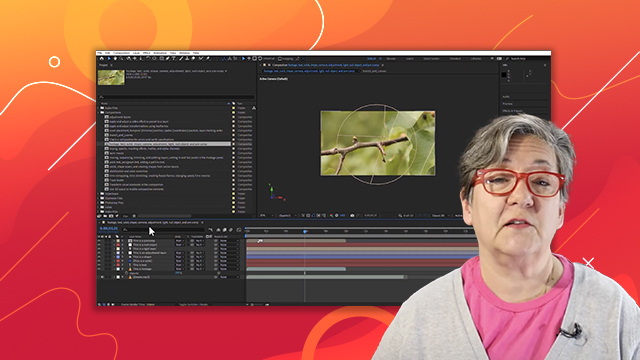
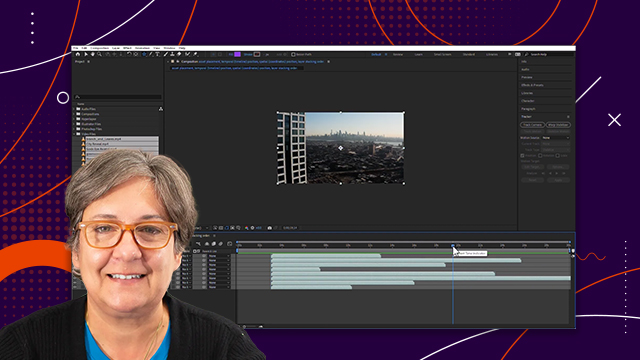
[00:01:08] and in the timeline we have our playhead
[00:01:11] right used to be called at current time
[00:01:14] indicate cater or CTI so you're still
[00:01:18] going to see some manuals and some
[00:01:19] tutorials that refer to this playhead as
[00:01:22] a CTI if I want to go to a particular
[00:01:25] point in time say I want to go five
[00:01:28] seconds from here but you see how it
[00:01:30] starts it's it's not starting at zero
[00:01:33] it's starting at 04 54 13 well I can
[00:01:37] just click here then press the plus sign
[00:01:40] and type a five zero zero and that moves
[00:01:44] my playhead exactly five seconds to the
[00:01:47] right
[00:01:48] and if I want to zero the time code
[00:01:52] number so of when this starts like see
[00:01:55] how this starts I just move the playhead
[00:01:57] here starts at 04 5413 I can go to
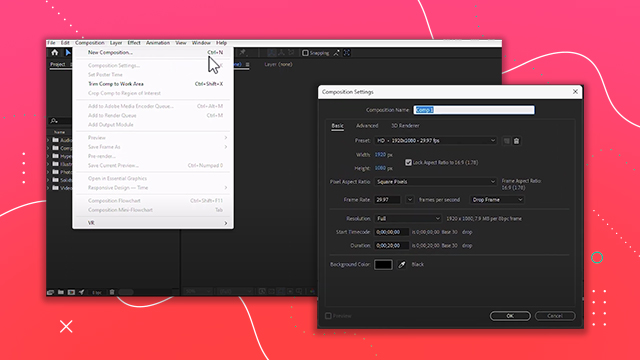
[00:02:00] composition composition settings and I
[00:02:03] can change the start time code to zero
[00:02:06] and there you go that's start time code
[00:02:08] is now zero so these are things that we
[00:02:11] covered before
[00:02:13] if I want to zoom in into here right I
[00:02:17] can just use my mouse scroll wheel see
[00:02:19] it and if I want to make the text
[00:02:22] invisible I just click on the eyeball
[00:02:24] here and there you go and now say I'm
[00:02:28] watching a lot of New Jersey and I want
[00:02:30] to watch more of Manhattan I can press
[00:02:32] and hold the space bar and I can click
[00:02:36] and drag and this is now the hand tool
[00:02:41] if I want to zoom in and out the
[00:02:43] timeline there are there is this slider
[00:02:46] here at the bottom in the timeline
[00:02:48] there's also the little Mountains and
[00:02:50] the big mountains as I call them that
[00:02:51] you can just click in there's also this
[00:02:54] bar that you can move to go to different
[00:02:57] times of the timeline and of course the
[00:03:00] best shortcut at least the one that I
[00:03:01] use the most is the plus key and the
[00:03:05] minus key on your main keyboard on your
[00:03:09] main keyboard all right so you can
[00:03:12] navigate the timeline fairly easily and
[00:03:15] you can also navigate the the comp panel
[00:03:19] or this monitor fairly easily zooming in
[00:03:22] using these keyboard shortcuts to play
[00:03:25] this timeline we could go to the preview
[00:03:28] panel and uh it helps if the timeline is
[00:03:31] selected remember in one of the movies I
[00:03:33] said hey if it's grayed out it's because
[00:03:35] what you want to do is not selected well
[00:03:37] in this case I went to the preview panel
[00:03:39] without selecting the timeline and of
[00:03:41] course everything was grayed out so if I
[00:03:44] want to play this I can just click on
[00:03:46] play I can click on pause I can go one
[00:03:49] frame back one frame forward I can go to
[00:03:52] the first frame and the last frame by
[00:03:55] clicking here but really the keyboard
[00:03:57] shortcuts that I like are the space bar
[00:04:00] for play pause I can also click and drag
[00:04:05] the playhead and this is known as
[00:04:07] scrubbing because I'm just scrubbing the
[00:04:09] timeline see it
[00:04:11] so scrubbing scrubbing and we already
[00:04:14] went over the preview panel so I'm not
[00:04:16] going to go over that uh I again but
[00:04:19] just know that you can change the work
[00:04:21] area bar place the playhead where you
[00:04:24] want to begin press the letter B place
[00:04:27] the playhead where you want it to end
[00:04:28] press the letter n and now see the range
[00:04:32] here is just the work area if we press
[00:04:35] the space bar only the work area
[00:04:37] previews and by default it will Loop if
[00:04:41] you don't want it to Loop click here on
[00:04:44] this icon
[00:04:45] and tell it to just play once and if
[00:04:49] that is selected then that's exactly
[00:04:51] what it's going to do just play once I
[00:04:54] like it to Loop so I'm gonna go back to
[00:04:56] looping all right so we have covered uh
[00:05:00] zooming in and out of the timeline
[00:05:01] zooming in aloud in the comp panel we
[00:05:04] have covered navigating uh the timeline
[00:05:06] and navigating the composition panel
[00:05:08] like if I'm zoomed in a lot I can have
[00:05:11] the space bar and it's the same here if
[00:05:13] I'm zoomed in a lot and I want to
[00:05:15] navigate to other places I can use this
[00:05:18] bar here and I can navigate to different
[00:05:21] places without moving the playhead
[00:05:25] we also covered a preview and a little
[00:05:29] bit of a reiteration of the preview
[00:05:32] panel and this brings me to the end of
[00:05:35] this video thank you for watching and
[00:05:37] I'll see you on the next video
[00:05:39] [Music]
[00:05:48] thank you