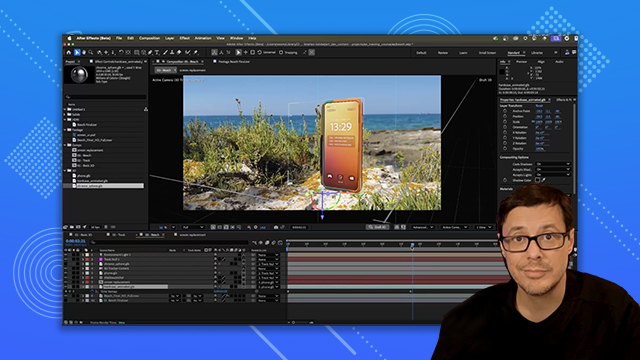
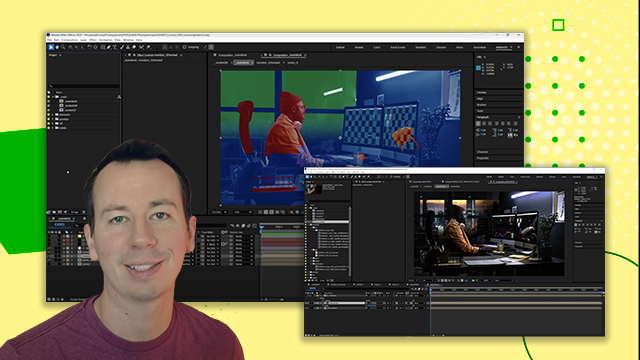
[00:00:00] Okay. So, to start off, I'm in this
[00:00:00] second comp that I call track. And I
[00:00:00] have this beach final HD full.
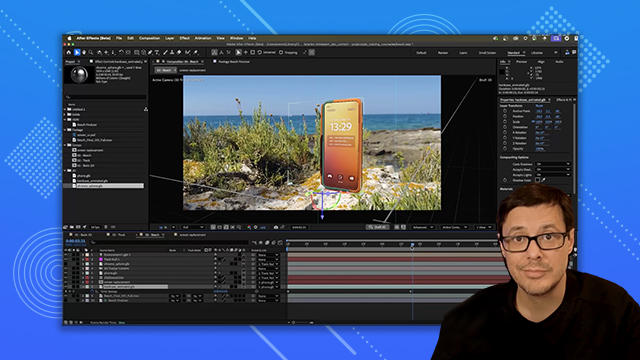
[00:00:00] And so, you can see it's just this
[00:00:00] little beach shot here. This is what
[00:00:00] this looks like. And I've run the 3D
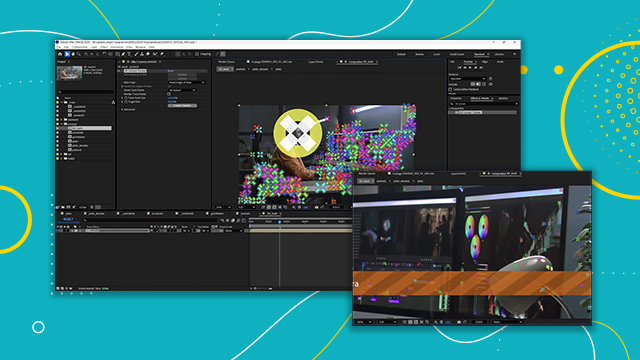
[00:00:00] camera tracker. So, on the effects
[00:00:00] control, you can see I have 3D camera
[00:00:00] tracker. And there's all my track
[00:00:00] points. So, the next thing I did was I
[00:00:00] just duplicated this, right? So, we're
[00:00:00] going to do everything fresh in this
[00:00:00] project. So, if we come over, let's take
[00:00:00] a look here at our effects, the 3D
[00:00:00] camera tracker. Again, here's my
[00:00:00] tracking data. Now, if I mouse over in
[00:00:00] this area, you can see that I have this
[00:00:00] little target. And I'm just going to
[00:00:00] lasso select a few of these points. And
[00:00:00] this is where I want to set my origin
[00:00:00] point. And this actually looks pretty
[00:00:00] good where it is. So, I'm just going to
[00:00:00] rightclick and I'm going to choose to
[00:00:00] set my ground plane and origin. And from
[00:00:00] this point, I'm also going to rightclick
[00:00:00] again and choose to create a null and a
[00:00:00] camera. So when I do that, we get a
[00:00:00] track null, which is going to be right
[00:00:00] here in the center. And then we have our
[00:00:00] 3D camera tracker is what it's called.
[00:00:00] If we look at our active camera, it is
[00:00:00] set to the 3D tracker camera. Now, if I
[00:00:00] just kind of play here, let's select
[00:00:00] that track null and I just kind of scrub
[00:00:00] my timeline, you can see that we have
[00:00:00] this null that's now locked in here to
[00:00:00] the scene. So that's at the track point
[00:00:00] and we can apply or add our 3D objects
[00:00:00] to the scene and parent them to this
[00:00:00] null. So let's start like taking a look
[00:00:00] at that process. So now I need to add my
[00:00:00] 3D objects. Let's come over to 3D. I'm
[00:00:00] going to grab the phone. Left click. I'm
[00:00:00] just going to drag and drop. And just
[00:00:00] for organizational sake, I'm throwing it
[00:00:00] below the the camera. And you can see
[00:00:00] it's very small. It's way off out of
[00:00:00] frame. Now what I'll do is I'll use the
[00:00:00] pick whip and I'm just going to parent
[00:00:00] it to the track null. So first step.
[00:00:00] Now, with the phone selected, I'll hit
[00:00:00] the P key for position. And I have some
[00:00:00] coordinates. I'm just going to zero this
[00:00:00] out. So, 000 on the XYZ. And that is
[00:00:00] just going to quickly place the phone
[00:00:00] right on that track point. It's super
[00:00:00] tiny, but we'll fix that in a moment.
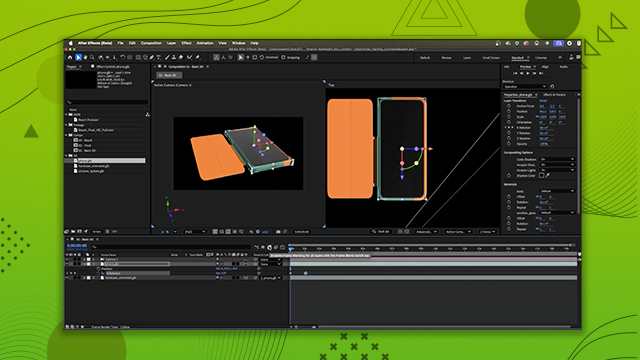
[00:00:00] Now, so we can see what we're doing,
[00:00:00] let's drop over to a second view, and I
[00:00:00] can zoom in. And as I said, here is that
[00:00:00] phone. Now, one of the things that
[00:00:00] you'll notice is the phone has the
[00:00:00] transform gizmo. It's right here in the
[00:00:00] center. This is the origin point or the
[00:00:00] pivot point. The pivot point can be
[00:00:00] assigned in your 3D program. Now, in
[00:00:00] this case for the phone, I didn't I
[00:00:00] didn't do it. I was lazy. I left it
[00:00:00] right in the center, which, you know,
[00:00:00] depending on your project, in the
[00:00:00] center, if I'm trying to kind of flip
[00:00:00] and rotate around, that's great. But in
[00:00:00] this particular case, I want to rotate
[00:00:00] and I want to rotate from the bottom.
[00:00:00] like the phone's going to be sitting the
[00:00:00] phone's going to be sitting here on this
[00:00:00] rock. So, I want to adjust the pivot.
[00:00:00] Now, I could go back to my 3D program
[00:00:00] and and do all that, but instead I can
[00:00:00] just adjust the anchor point here inside
[00:00:00] of After Effects. So, here I have my X,
[00:00:00] Y, and Z in the properties. If I adjust
[00:00:00] the Z-axis, and it's uh, you know, if I
[00:00:00] type in, let's say, let's just do -40,
[00:00:00] it's pretty close to what I want there.
[00:00:00] So, now I've set that anchor point.
[00:00:00] Okay, that's in position. Let's add the
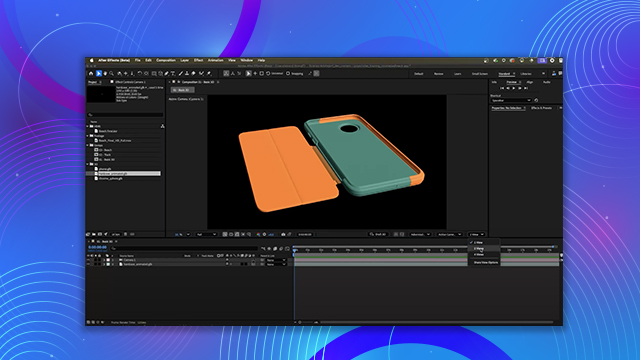
[00:00:00] hard case now. So, I'm going to select
[00:00:00] the hard case. I'm going to drag it in
[00:00:00] just below the phone. And I'm going to
[00:00:00] use the pick whip. Let's parent it to
[00:00:00] the track null. Hit P to open up my
[00:00:00] position. Zero everything out once
[00:00:00] again. 0 0. And there's the phone case.
[00:00:00] Now, it also has the pivot right in the
[00:00:00] center. We know how to fix that. Anchor
[00:00:00] point on the Z-axis. Let's type in -40
[00:00:00] once again. And now that is set in
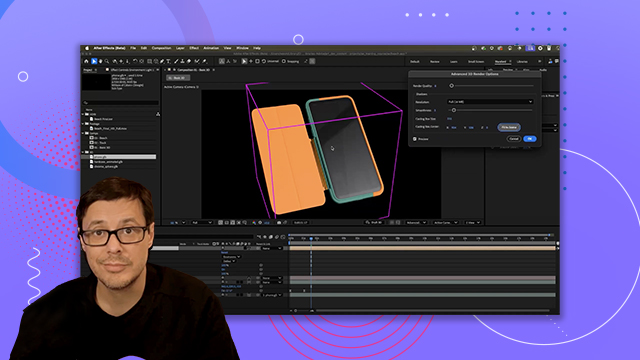
[00:00:00] place. Okay. So, I'm going to zoom in
[00:00:00] here. And what I want to do is just
[00:00:00] readjust this case. Now, you can see
[00:00:00] that it's getting kind of cut off here.
[00:00:00] Uh, no problem. What I usually do in
[00:00:00] this case is I'll just enter draft mode.
[00:00:00] Now, I can see everything. And all I
[00:00:00] want to do with the hard case selected
[00:00:00] is I'm just going to grab here the
[00:00:00] X-axis and just move it over. I'm just
[00:00:00] aligning the case so that it covers the
[00:00:00] phone. So, that should look pretty good.
[00:00:00] Of course, I can always check my other
[00:00:00] views. If we pop into the left view and
[00:00:00] we just kind of zoom in on this guy, we
[00:00:00] can just make sure that everything's
[00:00:00] lining up. For example, the phone
[00:00:00] buttons, are they showing up where the
[00:00:00] the cases? It looks like it's okay. If
[00:00:00] there's any problems, it's easy enough
[00:00:00] to fix. Uh, but so far, this is looking
[00:00:00] pretty decent. Okay, so now what I want
[00:00:00] to do is make sure that the hard case is
[00:00:00] is parented to the phone. So, right now,
[00:00:00] it's parented to the Tracknull. So, I'm
[00:00:00] going to use the Phip, parent it to the
[00:00:00] phone. So, if I select my phone and I
[00:00:00] move, let's say, in the X- axis, now the
[00:00:00] case comes along for the ride. Perfect.
[00:00:00] Now, it still looks super small here in
[00:00:00] the scene. We are going to scale things
[00:00:00] up, but before we do that, I want to
[00:00:00] take advantage of this position the
[00:00:00] phone is in right now. It's laying down.
[00:00:00] It's on the 0000 and it's going to allow
[00:00:00] me to do some work here for the