Home > Navigation and Workspace Basics

Wes McDermott

Principal Director, Substance 3D Worldwide Evangelism

linkedin-icon

Navigation and Workspace Basics

Learn how to move around the After Effects interface, add cameras, and leverage viewports to manage 3D scenes.

This summary is AI generated

Learning Outcomes:

  • Navigate 3D viewport using mouse shortcuts
  • Add and configure a camera in After Effects

Level: Advanced

Skills you'll gain:

After Effects, 3D Navigation, Camera Setup, Viewport Control

Key Insights

  • Use Alt/Option key for viewport navigation.
  • Orbit around 3D models with left mouse button.
  • Zoom in using right mouse button.
  • Pan the view with middle mouse button.
  • Create a new camera from the layer menu.
  • Understand the default settings for new cameras.
  • Switch between different camera views easily.
Learning outcomes

  • Navigate 3D viewport using mouse shortcuts
  • Add and configure a camera in After Effects

Key insights

  • Use Alt/Option key for viewport navigation.
  • Orbit around 3D models with left mouse button.
  • Zoom in using right mouse button.
  • Pan the view with middle mouse button.
  • Create a new camera from the layer menu.
  • Understand the default settings for new cameras.
  • Switch between different camera views easily.
Skills

After Effects, 3D Navigation, Camera Setup, Viewport Control

Transcript

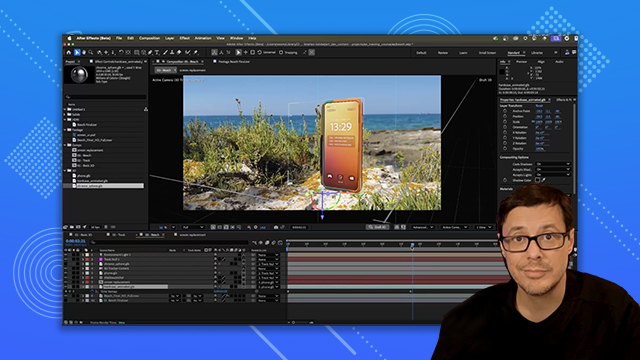
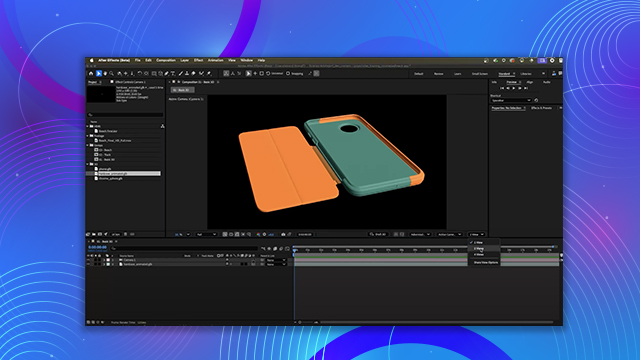
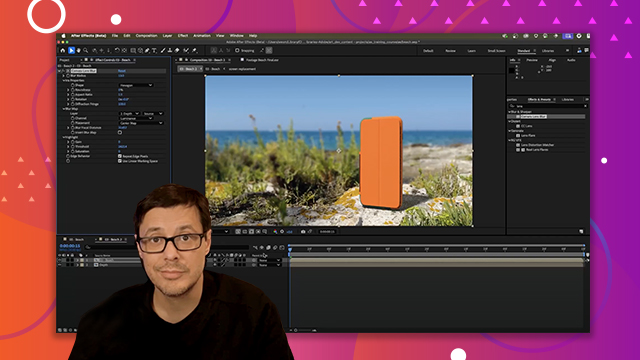
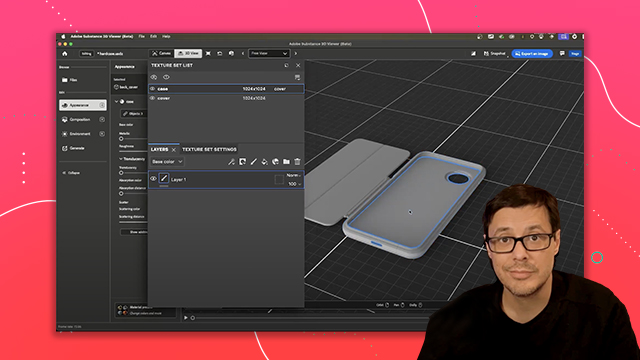
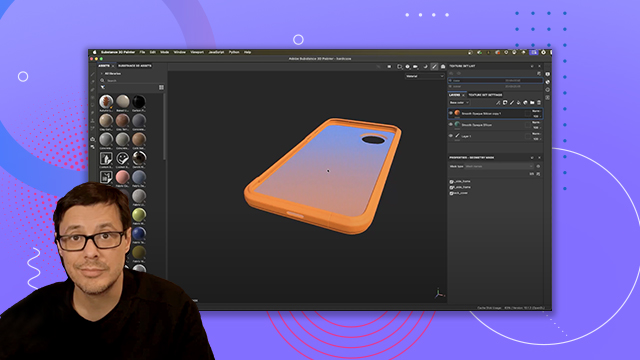
[00:00:00] Let's talk about viewport navigation.

[00:00:02] So, if I hold down the alt or option key

[00:00:04] and then use my left mouse button, I can

[00:00:06] orbit around the 3D model. And now you

[00:00:09] can see that we do have a 3D model.

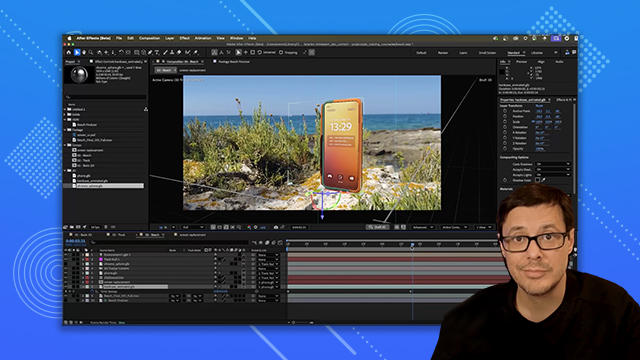
[00:00:12] However, it's really small. So, let's

[00:00:13] zoom in. Again, holding down alter

[00:00:16] option and using my right mouse button,

[00:00:18] I can zoom into the view. You can see

[00:00:20] this little crosshair appears, which

[00:00:22] will act as the pivot point through

[00:00:24] which I can orient around the 3D object.

[00:00:27] Now, if I want to pan again, I can hold

[00:00:29] down the alter option, use my middle

[00:00:31] mouse button, and I can pan around the

[00:00:33] view.

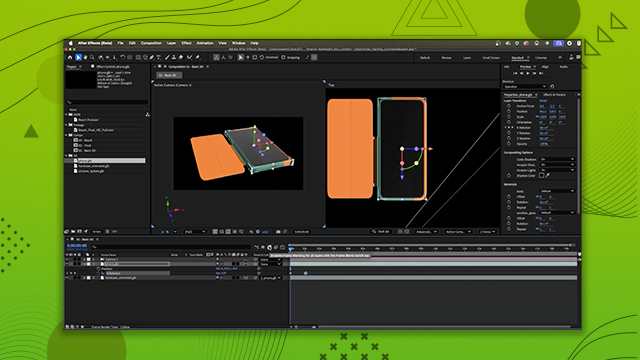
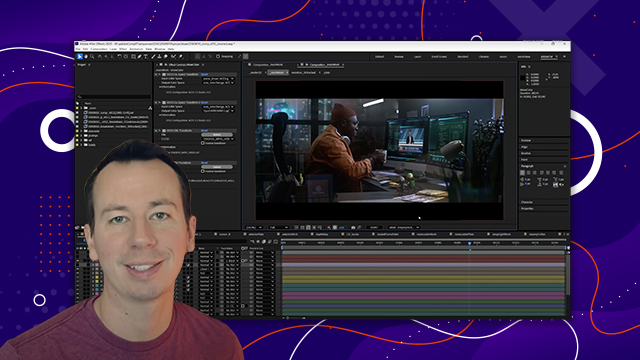
[00:00:37] So, now let's add a camera. So, I can

[00:00:39] come up here to layer and choose new.

[00:00:41] And I'm going to create a camera. Now,

[00:00:43] I'm going to leave everything here at

[00:00:44] default. And then just click okay. And

[00:00:46] now here, you can see that my view has

[00:00:49] changed. And in my layer stack, I now

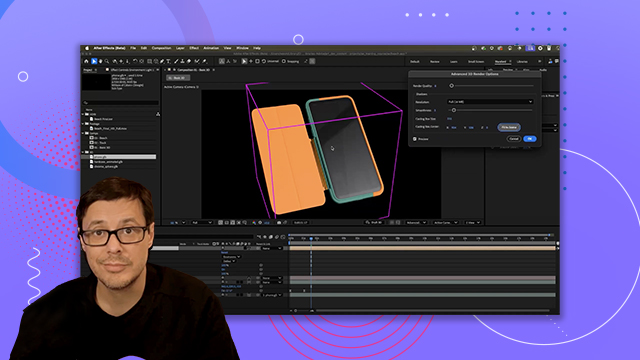
[00:00:52] have my camera. Now, if we take a look

[00:00:54] here at the bottom of the 3D view, you

[00:00:57] can see that this drop-down for my 3D

[00:00:59] view popup is set to active camera. Here

[00:01:02] at the very top, we have active camera,

[00:01:04] which is going to be camera one. So now

[00:01:08] if I go in and use the same keyboard

[00:01:10] shortcuts, I'm now adjusting