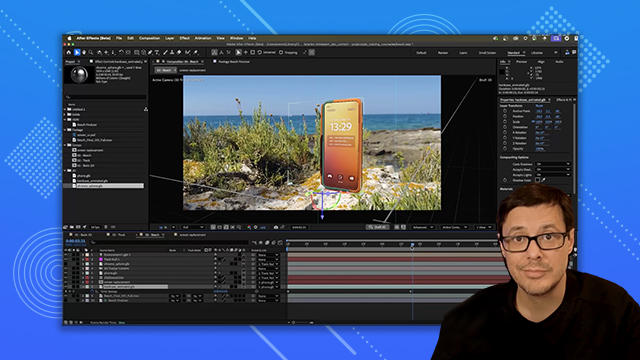
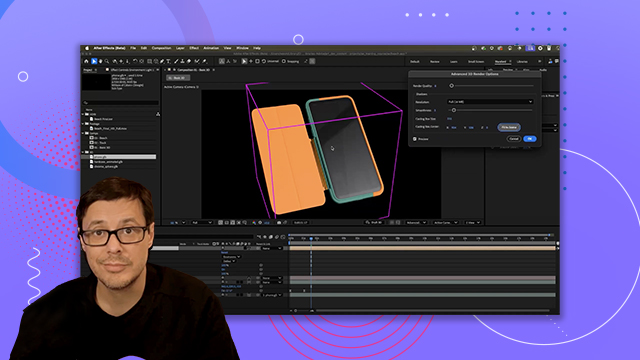
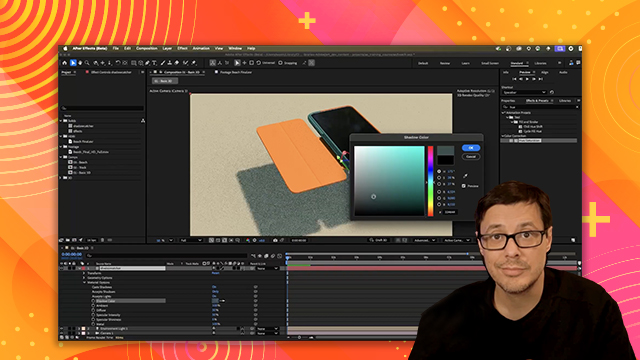
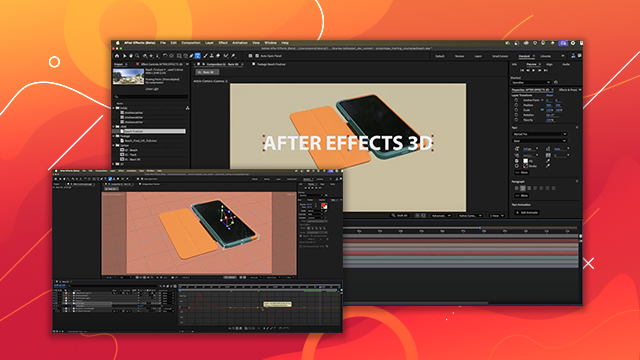
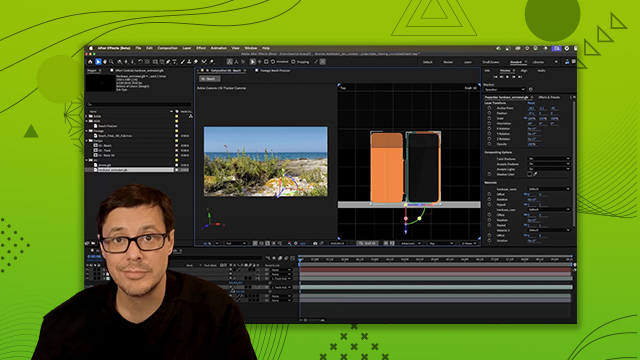
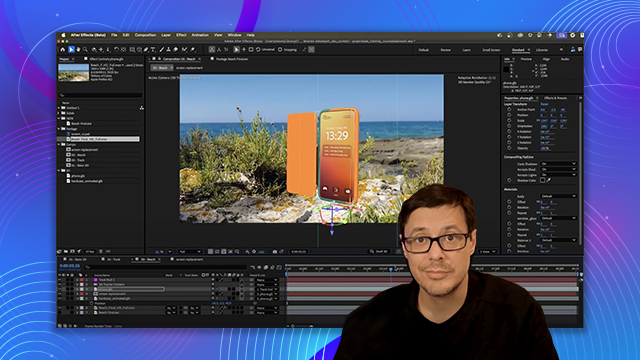
[00:00:00] Hey, my name is Wes McDermott and in
[00:00:02] this video we're going to talk about
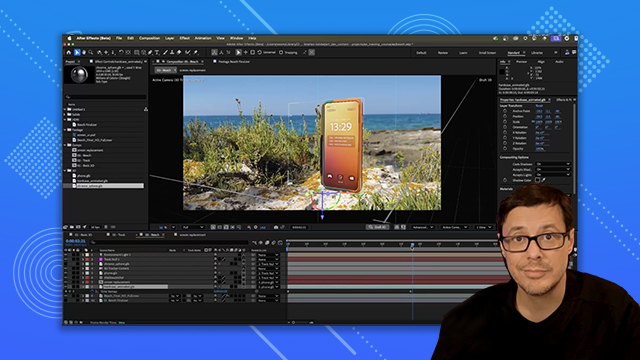
[00:00:03] working with 3D and After Effects. We're
[00:00:06] going to look at working with models,
[00:00:08] animation, lighting, and we're also
[00:00:10] going to composite the 3D object into a
[00:00:12] live scene. So, we got a lot to cover.
[00:00:14] Let's get into it. For this course, I'm
[00:00:16] using the latest version of the After
[00:00:18] Effects beta, which you can download
[00:00:19] from the Creative Cloud desktop app.
[00:00:23] To download the project files, you'll
[00:00:24] find the link in the description of this
[00:00:26] video. And here I have open the beach
[00:00:29] After Effects project. Now here in the
[00:00:31] project window, I'm going to have a
[00:00:32] couple of these 3D model files that I'm
[00:00:34] going to be working with to get started.
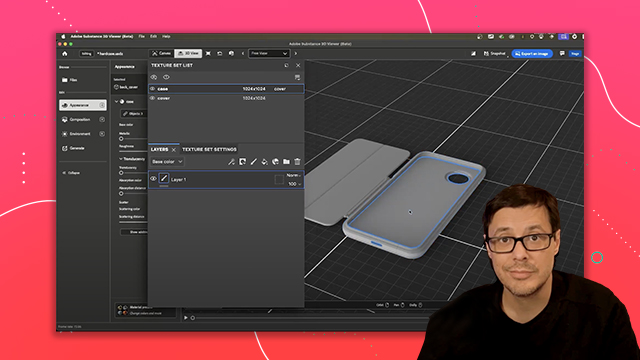
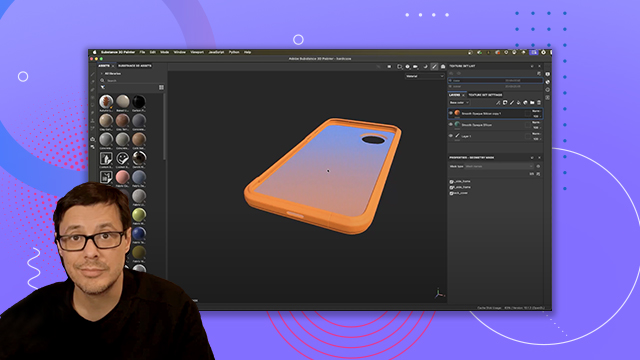
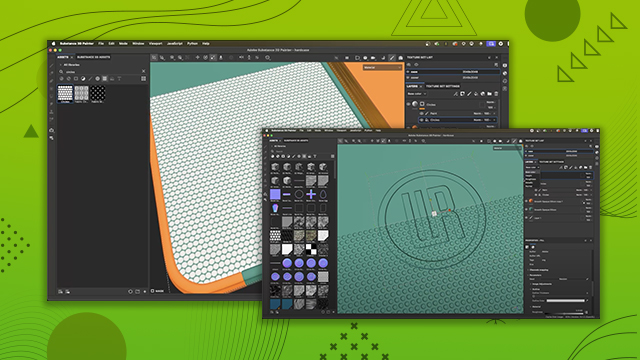
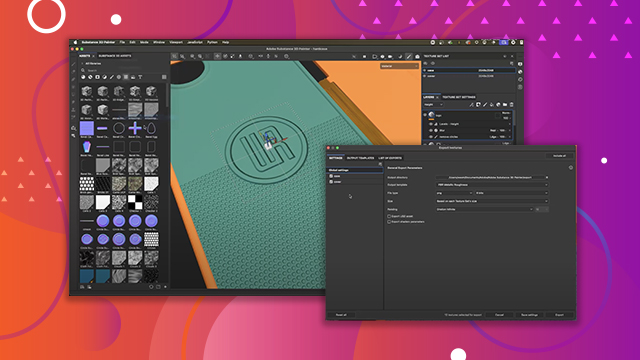
[00:00:37] If you want to see how the textures for
[00:00:39] this phone case were created, be sure to
[00:00:41] check out the FastTrack 3D texturing for
[00:00:43] beginners substance painter course. So
[00:00:45] you can import 3D models just as you
[00:00:47] would any file here inside of After
[00:00:49] Effects. So if I just come over and
[00:00:50] rightclick, I can choose to import a
[00:00:52] file. Now I already have this file
[00:00:54] imported to my project. So I can just
[00:00:56] leftclick, drag and drop and place this
[00:00:58] here into the comp in the layer panel.
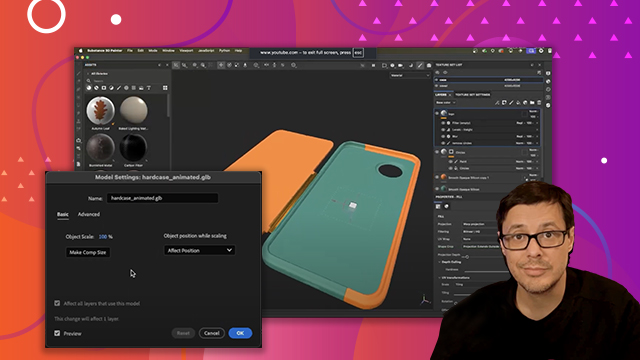
[00:01:01] And a window is going to appear that's
[00:01:03] going to allow me to change the model
[00:01:04] settings. So here I can set a name for
[00:01:06] the layer if I like. But the most
[00:01:08] important setting is this make comp size
[00:01:10] or object scale. So what I need to do is
[00:01:13] just click make comp size and this will
[00:01:15] adjust the 3D model to fit the size of
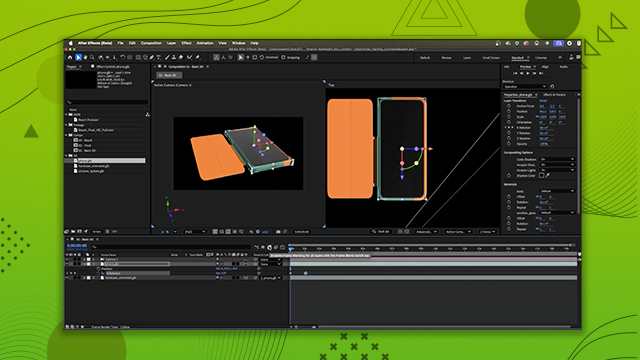
[00:01:17] my comp. And now that this is set up,
[00:01:19] I'll click okay. And then here in the
[00:01:21] view, you can see that I have what
[00:01:22] appears to be a 3D model. And here in
[00:01:25] the layer panel, I have the 3D model as
[00:01:28] a layer in my