


Understanding selections & track targeting
Learn how to effectively select assets and how to track target in Premiere.
This summary is AI generated
Learning Outcomes:
- Understand track targeting in Premiere Pro
- Mark In and Out points effectively
- Deselect clips for precise editing
Level: Advanced
Skills you'll gain:
Premiere Pro, Editing, Track Targeting, Keyboard Shortcuts
Key Insights
- Selection in the timeline overrides In and Out marks.
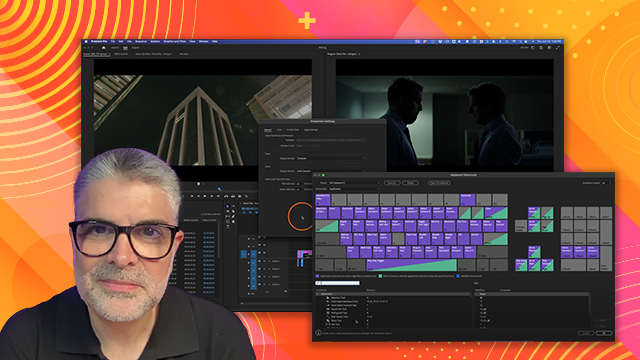
- Use Command key to deselect tracks in the timeline.
- Shift key snaps the playhead to clip edges.
- Keyboard shortcuts can streamline the editing process.
- Deselect all before making precise selections.
- Shift U creates a subsequence from selected clips.
- Track targeting requires careful selection management.
- Accidental selections can lead to unexpected results.
- Customize keyboard shortcuts for efficiency.
- Understanding Premiere's selection logic is crucial.


 AdChoice