Trimming
Learn how to trim clips in Adobe Premiere Pro. You'll discover how easy it is to make a video clip shorter or longer.
This summary is AI generated
Learning Outcomes:
Learning outcomes not available.
Level: Intermediate
Skills you'll gain:
Skills not available.
Key Insights
Key insights not available.
Did the AI summary help? Let us know.
Learning outcomes
Learning outcomes not available.
Key insights
Key insights not available.
Skills
Skills not available.
Transcript
[00:00:00] [Music]
[00:00:00] welcome to this Premiere Pro tutorial on
[00:00:00] trimming I'm Louisa Winters
[00:00:00] let's start by opening the project
[00:00:00] called zero four trimming this is
[00:00:00] included with your project files if you
[00:00:00] have not downloaded these please go
[00:00:00] ahead and do so now
[00:00:00] now that we have the project to open
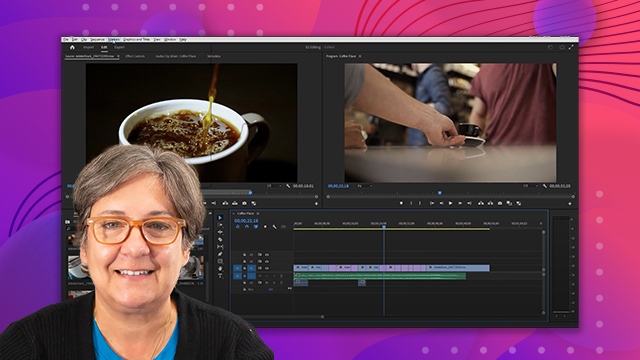
[00:00:00] let's switch to the editing workspace
[00:00:00] for this click on the workspace switcher
[00:00:00] button and choose editing if you are
[00:00:00] already on the editing workspace you can
[00:00:00] click on the button again and choose
[00:00:00] reset to save the layout
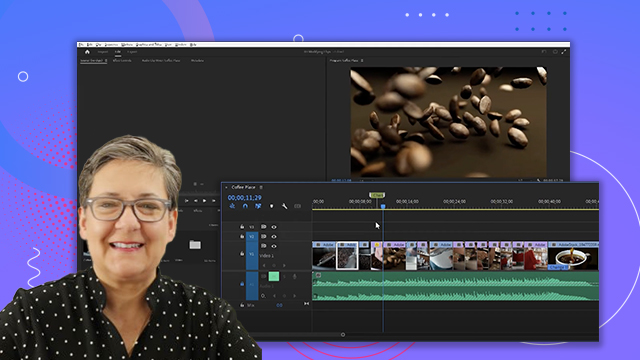
[00:00:00] let's play a little bit of this timeline
[00:00:00] let's unlock the audio track on unmute
[00:00:00] the audio by clicking on this lock icon
[00:00:00] and then this m icon
[00:00:00] [Music]
[00:00:00] we have arrived at this point in the
[00:00:00] edit because we have edited this piece
[00:00:00] in previous movies if you missed one of
[00:00:00] the movies please go back and watch it
[00:00:00] and you'll be caught up in no time
[00:00:00] we will further improve the piece by
[00:00:00] fine-tuning the edit and framing a few
[00:00:00] shots the first thing I'd like to do is
[00:00:00] work with trimming trimming a clip but
[00:00:00] what does that mean what is trimming
[00:00:00] trimming usually means adjusting the in
[00:00:00] and out of a clip so it could mean
[00:00:00] making a clip shorter by cutting the end
[00:00:00] or the beginning or it could mean to
[00:00:00] make a clip longer by making the clips
[00:00:00] start later and or end later
[00:00:00] let's place the playhead right on the
[00:00:00] first cut which is time code 401
[00:00:00] for that let's use the up or down arrows
[00:00:00] until the playhead is where we need it
[00:00:00] now let's use the keyboard shortcut of
[00:00:00] shift T to enable trim mode
[00:00:00] you can see that the program monitor now
[00:00:00] has two screens the left side represents
[00:00:00] the clip on the left and the right side
[00:00:00] represents the clip on the right
[00:00:00] depending on where we put the mouse
[00:00:00] cursor it changes display and it affects
[00:00:00] that clip
[00:00:00] for this edit we need to ensure a little
[00:00:00] better continuity between the clips you
[00:00:00] can see that the clip on the left and
[00:00:00] the clip on the right don't quite agree
[00:00:00] with the positioning of the elements
[00:00:00] so let's position our mouse cursor on
[00:00:00] the right clip click and drag to the
[00:00:00] right until this displays agrees with
[00:00:00] the one on the left pretty easy right
[00:00:00] notice that as we changed this edit the
[00:00:00] program became shorter this is called a
[00:00:00] ripple edit because any changes we make
[00:00:00] Ripple to the end of the program if we
[00:00:00] make the clip shorter the whole program
[00:00:00] becomes shorter notice that the tool
[00:00:00] itself is yellow when it is a ripple
[00:00:00] edit
[00:00:00] however if I position the cursor in
[00:00:00] between the two clips the display of the
[00:00:00] tool changes and it's now red and it has
[00:00:00] these double arrows this is my visual
[00:00:00] indication that this is now the rolling
[00:00:00] edit tool and I can affect both the end
[00:00:00] of the clip on the left and the
[00:00:00] beginning of the clip on the right at
[00:00:00] the same time and this edit will not
[00:00:00] change the duration of the program we
[00:00:00] can use this tool to affect where the
[00:00:00] edit happens without affecting the other
[00:00:00] edits
[00:00:00] let's play this edit now
[00:00:00] see much better
[00:00:00] and notice that we exited the trim mode
[00:00:00] automatically and went back to a regular
[00:00:00] view of the program monitor these tools
[00:00:00] the Ripple and rolling edit tools are
[00:00:00] available for you to use outside of the
[00:00:00] trim mode you can find them here in the
[00:00:00] tools panel
[00:00:00] now let's go to the second cut from the
[00:00:00] end which is time code 3508
[00:00:00] use the down arrow for this
[00:00:00] now select the third clip from the end
[00:00:00] let's zoom in so we can see this a
[00:00:00] little bit better
[00:00:00] to zoom in use the plus key
[00:00:00] now let's switch to the slip tool and
[00:00:00] change where this clip starts and ends
[00:00:00] without changing the duration of the
[00:00:00] clip
[00:00:00] the slip tool is a very useful tool it
[00:00:00] can make your editing much faster and
[00:00:00] comfortable if we want for this clip to
[00:00:00] start one second earlier or later but do
[00:00:00] not want to change where the clip is in
[00:00:00] the timeline or how long the clip plays
[00:00:00] for then this is the perfect tool so
[00:00:00] we're changing where the clip starts and
[00:00:00] ends but we are not changing the
[00:00:00] duration of the clip or where it is in
[00:00:00] the timeline
[00:00:00] let's choose the slip tool by clicking
[00:00:00] on the tool or simply use the shortcut
[00:00:00] which is the letter Y
[00:00:00] now let's make this clip start one
[00:00:00] second earlier see the numbers on the
[00:00:00] program monitor these are telling you by
[00:00:00] how much you are adjusting the clip
[00:00:00] if we want for the clip to start one
[00:00:00] second earlier then we can see the
[00:00:00] numbers change as we click and drag the
[00:00:00] tool on the clip to the right and once
[00:00:00] this number is plus one zero zero we're
[00:00:00] done the clip now starts one second
[00:00:00] earlier
[00:00:00] notice that the duration of the program
[00:00:00] stays the same and the clip is in the
[00:00:00] same location as it was before
[00:00:00] this clip simply starts and ends one
[00:00:00] second earlier than before
[00:00:00] on your own try these tools with other
[00:00:00] Clips in this timeline and remember that
[00:00:00] if you change something and then don't
[00:00:00] like it you can always undo the shortcut
[00:00:00] for undo is Ctrl Z for Windows and
[00:00:00] command Z for the Mac
[00:00:00] let's zoom out for that press the minus
[00:00:00] key a couple of times so that we can see
[00:00:00] all of the clips
[00:00:00] now let's use the selection tool that is
[00:00:00] this Arrow here you can click on the
[00:00:00] tool itself or you can use the keyboard
[00:00:00] shortcut which is the letter V as in
[00:00:00] Victor
[00:00:00] let's move the playhead and place it on
[00:00:00] top of the last clip
[00:00:00] with the playhead here you can now
[00:00:00] double click on the program Monitor and
[00:00:00] you will see these control points you
[00:00:00] can now click and drag to reposition the
[00:00:00] clip or rotate or resize all here in the
[00:00:00] program monitor
[00:00:00] now let's move this clip a little bit to
[00:00:00] the left
[00:00:00] if you are showing the transparency grid
[00:00:00] and you'd like to hide it click on the
[00:00:00] wrench and choose transparency Grid in
[00:00:00] my case I'm not showing it so I won't
[00:00:00] click on it
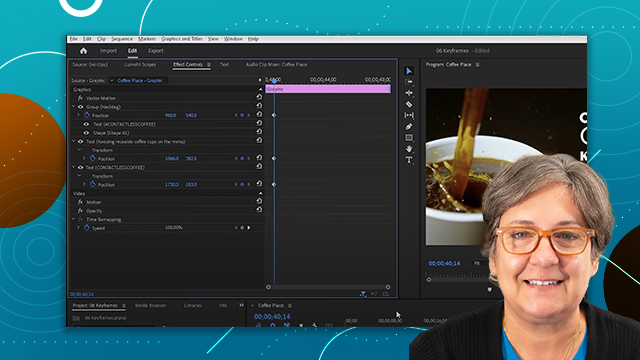
[00:00:00] now let's go to the effect controls
[00:00:00] panel and make sure that the position of
[00:00:00] the clip is 390 for the x value and 540
[00:00:00] for the Y value
[00:00:00] we can type the numbers by clicking on
[00:00:00] them and then typing
[00:00:00] in another movie we will create a soft
[00:00:00] transition to merge the image to the
[00:00:00] black background
[00:00:00] this brings us to the end of this video
[00:00:00] about trimming in Premiere Pro
[00:00:00] I'm Louisa Winters thank you for
[00:00:00] watching and see you next time
[00:00:00] [Music]