


Keying
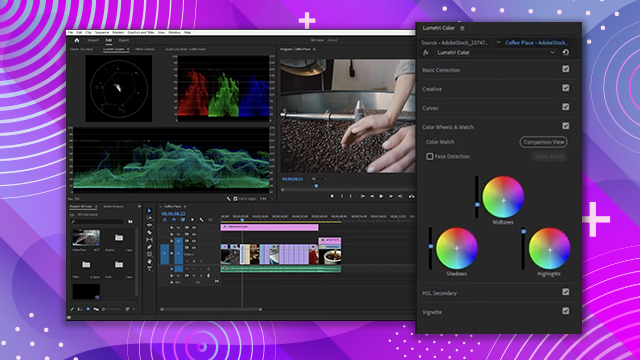
Learn how to color correct your video clips using the Lumetri color panel. Learn how to use a waveform monitor, vectorscope, and RGB parade.
This summary is AI generated
Learning Outcomes:
- Create a new sequence in Premiere Pro
- Apply Ultra Key effect for keying
- Adjust keying settings for better transparency
Level: Intermediate
Skills you'll gain:
Premiere Pro, Keying, Masking, Color Correction
Key Insights
- Switch to the effects workspace for keying tasks.
- Use the eyedropper tool to select key color.
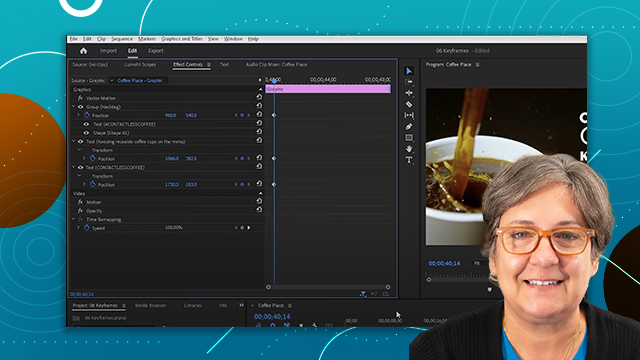
- Adjust parameters in the effect controls panel.
- Utilize masks for precise keying around subjects.
- Experiment with sliders for optimal keying results.
- Nesting sequences allows for organized project management.
- Use Lumetri Color for advanced color correction.
- Undo changes easily with Ctrl Z or Command Z.
- Extend clips in the timeline for better pacing.



 AdChoice