[00:00:00] [Music]
[00:00:10] welcome to this premiere pro tutorial on
[00:00:12] archiving i'm luisa winters
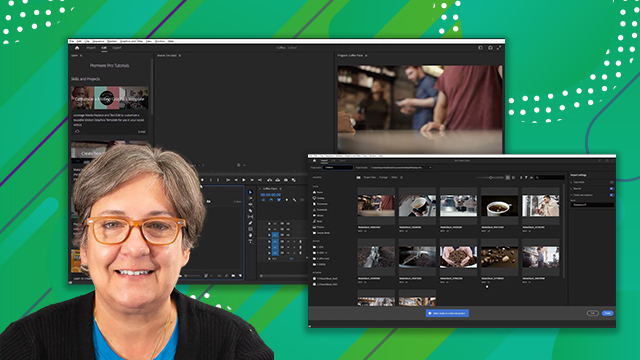
[00:00:15] let's start by opening the project named
[00:00:18] 14 export and archive
[00:00:21] this is the project we have been working
[00:00:23] with for export
[00:00:26] if you have not downloaded the project
[00:00:28] files please go ahead and do so now
[00:00:33] now we're done editing and exporting our
[00:00:35] project
[00:00:36] all that is left to do is archive it
[00:00:38] just in case we need to reference it at
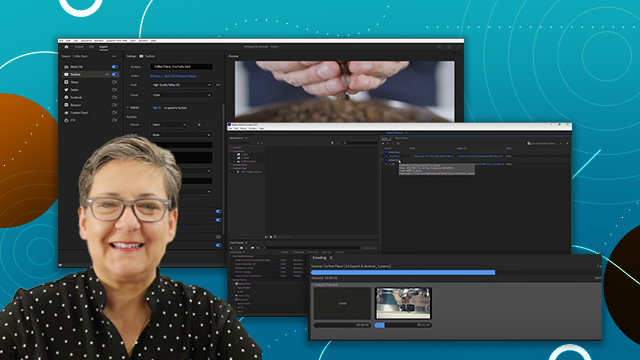
[00:00:41] a later date in premiere we can use the
[00:00:43] project manager to accomplish this
[00:00:46] let's make sure that the coffee place
[00:00:48] sequence is active
[00:00:52] and now go to file
[00:00:56] project manager
[00:01:02] if the coffee place sequence is not
[00:01:04] checked in here make sure that you check
[00:01:07] it
[00:01:08] we could use the others as well but
[00:01:10] those are already nested in the coffee
[00:01:13] place sequence so there's no need to
[00:01:15] check them we will choose to consolidate
[00:01:17] the footage and transcode it so for this
[00:01:20] one the source will be the sequence
[00:01:28] and we will transcode it to quicktime
[00:01:31] so we will choose that from this drop
[00:01:33] down menu
[00:01:34] and for the preset we will choose match
[00:01:37] source
[00:01:38] and apple prores 422 lt
[00:01:41] we can change the destination path so
[00:01:44] let's click on browse and i'll create a
[00:01:46] new folder on my desktop
[00:01:54] i'll call this folder archive
[00:01:59] now let's go ahead and calculate the
[00:02:01] size of the current project
[00:02:04] versus the size of the archived one
[00:02:07] to do that just click on this button
[00:02:10] here and you can see my values
[00:02:12] this is the original project size
[00:02:15] which is
[00:02:17] 498.28 megabytes
[00:02:19] and here's the resulting project size
[00:02:22] which is
[00:02:24] 472.21 megabytes
[00:02:26] you can also see how much space i have
[00:02:29] left on my hard drive
[00:02:31] there are other options that you can
[00:02:33] check in here
[00:02:34] you can choose to exclude unused clips
[00:02:38] and of course we want that
[00:02:40] you can also include handles and 30
[00:02:43] frames is a good number
[00:02:46] you can convert image sequences to clips
[00:02:50] you can rename files to match clip names
[00:03:02] you can also convert after effects
[00:03:04] compositions to clips
[00:03:06] and finally you can choose to preserve
[00:03:10] transparency that's the alpha channel
[00:03:14] now let's click ok to start the process
[00:03:16] and let's save it
[00:03:24] this dialog opens up because there are
[00:03:26] discrepancies within the clips and
[00:03:28] premiere is just telling us click ok
[00:03:35] the transcoding happens and now we have
[00:03:37] an archived project
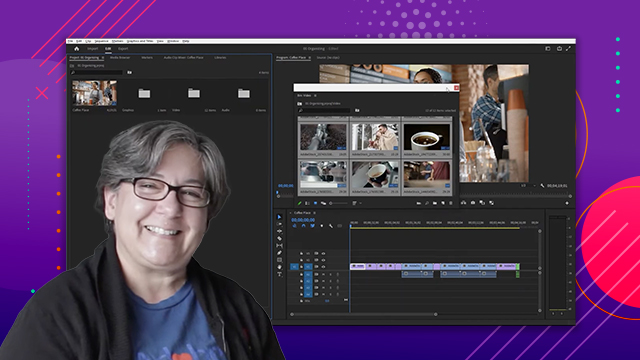
[00:03:40] this is what the files look like
[00:03:43] you can see the clips in here and even
[00:03:45] the project file
[00:03:46] in the future we will be able to open
[00:03:48] this project and go back to what it was
[00:03:52] when we archived it
[00:03:55] this brings us to the end of this video
[00:03:58] about archiving in premiere pro
[00:04:00] i'm luisa winters thank you for watching
[00:04:03] and see you next time
[00:04:07] [Music]
[00:04:33] you