Home > Effects

Luisa Winters

Instructor and consultant for Adobe products

linkedin-icon

Effects

Learn how to apply effects to your video clips in Adobe Premiere Pro enabling you apply various effects such as cropping or transitions.

This summary is AI generated

Learning Outcomes:

  • Apply effects to clips in Premiere Pro
  • Use transitions for smoother edits
  • Utilize adjustment layers for multiple clips

Level: Intermediate

Skills you'll gain:

Premiere Pro, Effects, Transitions, Adjustment Layers

Key Insights

  • Switch to the effects workspace for better access.
  • Use the effects panel to search and apply effects.
  • Adjust effect settings in the effect controls panel.
  • Toggle effects on and off to see changes.
  • Understand different types of transitions: fades, dissolves, wipes.
  • Set transition duration and alignment in the effect controls.
  • Create adjustment layers to apply effects to multiple clips.
  • Organize project panels for better workflow.
  • Utilize keyboard shortcuts for efficiency.
  • Loop playback for easier editing review.

Learning outcomes

  • Apply effects to clips in Premiere Pro
  • Use transitions for smoother edits
  • Utilize adjustment layers for multiple clips

Key insights

  • Switch to the effects workspace for better access.
  • Use the effects panel to search and apply effects.
  • Adjust effect settings in the effect controls panel.
  • Toggle effects on and off to see changes.
  • Understand different types of transitions: fades, dissolves, wipes.
  • Set transition duration and alignment in the effect controls.
  • Create adjustment layers to apply effects to multiple clips.
  • Organize project panels for better workflow.
  • Utilize keyboard shortcuts for efficiency.
  • Loop playback for easier editing review.

Skills

Premiere Pro, Effects, Transitions, Adjustment Layers

Transcript

[00:00:00] [Music]

[00:00:00] welcome to this premiere pro tutorial on

[00:00:00] effects i'm luisa winters

[00:00:00] let's start by opening the project named

[00:00:00] o7 effects included with your project

[00:00:00] files

[00:00:00] if you have not downloaded these

[00:00:00] please go ahead and do so now

[00:00:00] now that we have the project to open

[00:00:00] let's switch to the effects workspace

[00:00:00] for this click on the workspace switcher

[00:00:00] button and choose effects if you are

[00:00:00] already on the effects workspace you can

[00:00:00] click on the button again and choose

[00:00:00] reset

[00:00:00] to saved layout

[00:00:00] let's see where our panels are now

[00:00:00] notice that the effects panel is here on

[00:00:00] the top right hand side and we have

[00:00:00] other panels available in here such as

[00:00:00] the essential graphics panel lumetri

[00:00:00] color and others

[00:00:00] now let's move the playhead on top of

[00:00:00] the last clip and let's select this clip

[00:00:00] we're going to apply the crop effect to

[00:00:00] this clip with the clip selected go to

[00:00:00] the effects panel and in the search

[00:00:00] field type the word crop

[00:00:00] we now see the crop effect in here

[00:00:00] inside of the transform folder

[00:00:00] let's add that effect to the selected

[00:00:00] clip

[00:00:00] click on the effect name and drag it to

[00:00:00] the clip but because the clip is

[00:00:00] selected all you need to do is double

[00:00:00] click the effect and that's it

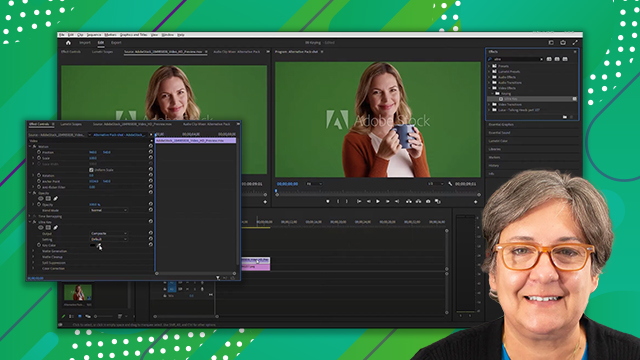
[00:00:00] in the effect controls panel let's

[00:00:00] change some settings

[00:00:00] let's set the right value to 20

[00:00:00] and now set the edge feather to 200

[00:00:00] what this does is create a smooth

[00:00:00] transition between the clip and the

[00:00:00] background

[00:00:00] let's toggle the effect on and off so

[00:00:00] that you can see the difference

[00:00:00] to toggle the effect on and off click on

[00:00:00] this icon here and we can now clearly

[00:00:00] see what the effect is doing

[00:00:00] now let's use transitions but first what

[00:00:00] is a transition

[00:00:00] a transition is a way that editors have

[00:00:00] to go from one clip to the next

[00:00:00] transitions can be fades and dissolves

[00:00:00] or even wipes

[00:00:00] i'd like to think that the most common

[00:00:00] transition is the straight cut

[00:00:00] but in this video we will be using cross

[00:00:00] dissolves across dissolves is when two

[00:00:00] adjacent clips fade out and in at the

[00:00:00] same time in premiere pro if we use a

[00:00:00] cross dissolve on one clip only the clip

[00:00:00] fades in from transparent let's try it

[00:00:00] i'd like starting programs with a quick

[00:00:00] cross dissolve so that the first clip

[00:00:00] fades in

[00:00:00] let's move the playhead to the beginning

[00:00:00] of the program and play

[00:00:00] [Music]

[00:00:00] see how it just starts

[00:00:00] i'd like to change that i'd like it to

[00:00:00] fade in

[00:00:00] to add the cross dissolve let's search

[00:00:00] for it in the effects panel

[00:00:00] start typing the word cross dissolve and

[00:00:00] before you're done typing you'll see it

[00:00:00] here

[00:00:00] click and drag it from the effects panel

[00:00:00] to the head of the first clip

[00:00:00] let's play the beginning again

[00:00:00] [Music]

[00:00:00] see much smoother it's fading from

[00:00:00] transparent but of course it shows as

[00:00:00] black let's play it once more

[00:00:00] [Music]

[00:00:00] let's add a different transition to a

[00:00:00] different part of this program

[00:00:00] let's go to time code 1927 that's 19

[00:00:00] seconds and 27 frames you can type those

[00:00:00] numbers here in the timeline 1927

[00:00:00] and the playhead moves there

[00:00:00] let's add the slide transition in here

[00:00:00] select the word we typed before and now

[00:00:00] type the word slide in the search field

[00:00:00] of the effects panel and now you can

[00:00:00] drag the slide transition to place it in

[00:00:00] between these two clips

[00:00:00] now let's zoom in by pressing the plus

[00:00:00] key

[00:00:00] now let's select the transition

[00:00:00] click on the transition itself to select

[00:00:00] it

[00:00:00] in the effect controls panel let's type

[00:00:00] in a new duration of 15 frames type of

[00:00:00] 15 in here

[00:00:00] now let's click on this drop down menu

[00:00:00] and notice that the transition is set to

[00:00:00] center at cut

[00:00:00] there are two other choices which are

[00:00:00] start at cut and end at cut

[00:00:00] let's choose end at cut

[00:00:00] see how the transition changes but what

[00:00:00] do those things mean

[00:00:00] center a cut means that the edit point

[00:00:00] is at the center of the transition

[00:00:00] start at cut means that the edit point

[00:00:00] and the transition start at the same

[00:00:00] point and of course in that cut

[00:00:00] means that the transition will end at

[00:00:00] the edit point

[00:00:00] let's play the transition set an end

[00:00:00] point here just before the transition

[00:00:00] and an out point here

[00:00:00] right after

[00:00:00] now let's loop the playback to loop the

[00:00:00] playback let's adjust the button display

[00:00:00] here in the monitor panel

[00:00:00] click on this little plus sign to open

[00:00:00] the button editor and let's drag this

[00:00:00] loop button to the interface

[00:00:00] we can now close this and enable loop by

[00:00:00] clicking on the icon

[00:00:00] now let's move the playhead to the

[00:00:00] endpoint we set before

[00:00:00] for that click on this icon and now

[00:00:00] let's just play

[00:00:00] [Music]

[00:00:00] now let's delete the in and out points

[00:00:00] for that right click them and choose

[00:00:00] clear in and out

[00:00:00] so we have seen how to add an effect and

[00:00:00] how to add a transition but what happens

[00:00:00] when you want to add the same effect to

[00:00:00] several clips

[00:00:00] that's where adjustment layers come in

[00:00:00] an adjustment layer it's a clip whose

[00:00:00] effects affect all clips under it let's

[00:00:00] try it

[00:00:00] click on the project panel

[00:00:00] and now choose file

[00:00:00] new

[00:00:00] adjustment layer

[00:00:00] accept the default settings and click ok

[00:00:00] now let's drag this adjustment layer

[00:00:00] from the project panel to v3 in the

[00:00:00] timeline let's do a zoom to fit so that

[00:00:00] we can see all the items here in the

[00:00:00] timeline for that press the backslash

[00:00:00] key on your keyboard

[00:00:00] now let's make this adjustment layer

[00:00:00] long enough to cover all the clips with

[00:00:00] the exception of the last one

[00:00:00] now let's add an effect to the

[00:00:00] adjustment layer

[00:00:00] remember this effect will affect all the

[00:00:00] clips under it which in this case is all

[00:00:00] the clips with the exception of the last

[00:00:00] one

[00:00:00] in the effects panel on the search field

[00:00:00] let's type the word legal

[00:00:00] now to add this effect to the adjustment

[00:00:00] layer you could either drag it or

[00:00:00] because that clip is selected you could

[00:00:00] double click the name of the preset in

[00:00:00] here to add it to the clip

[00:00:00] if we toggle the effect on and off in

[00:00:00] the effect controls panel we see the

[00:00:00] changes that this effect is making

[00:00:00] okay let's keep our project panel

[00:00:00] organized so let's drag the adjustment

[00:00:00] layer to the graphics bin

[00:00:00] this brings us to the end of this video

[00:00:00] about using effects in premiere pro i'm

[00:00:00] luisa winters thank you for watching and

[00:00:00] see you next time

[00:00:00] [Music]

[00:00:00] foreign

[00:00:00] you

Explore Other Tutorials